31 October 2026 · 6 min read
What Is ISO and How to Set It Without Ruining the Shot
ISO changes brightness, but it cannot replace light. Learn a simple test, avoid noisy shadows, and see how I set ISO on my Sony cameras.
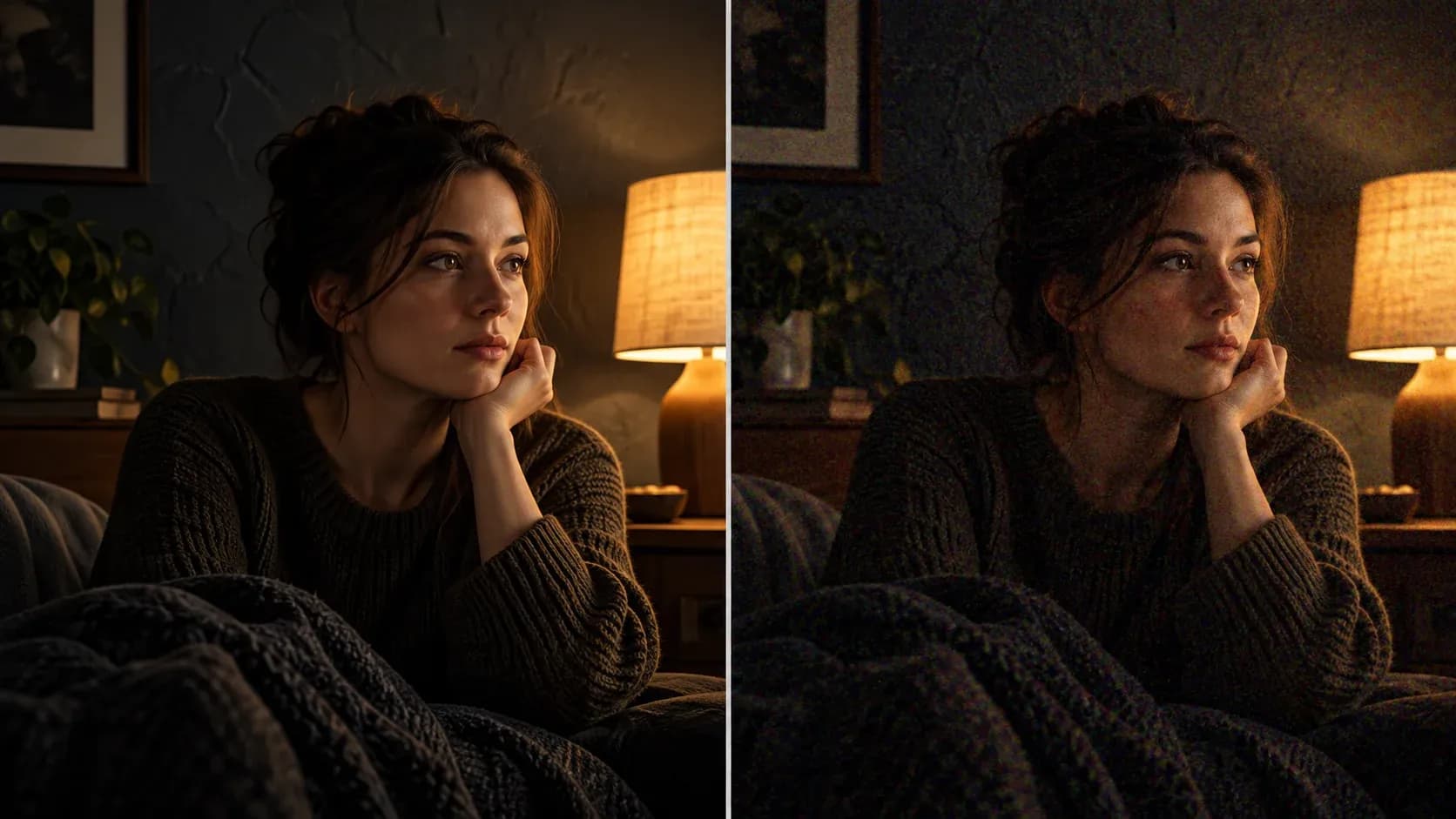
The picture looks dark, so you raise ISO. The face becomes clearer, but the shadows start moving with coloured specks. Now you're choosing between brightness and noise.
ISO is a camera setting that affects recorded image brightness. In digital cameras, it often involves gain or a change in signal processing. It doesn't send more light through the lens.
That difference matters. More light gives the camera more useful information. A higher ISO can make the available signal brighter, but it can't invent missing detail.
What the number tells you
With other settings unchanged, doubling ISO usually raises image brightness by one stop. Moving from 400 to 800 is one stop. Moving from 800 to 1600 is another.
But two cameras at the same ISO can behave differently. Sensor design, recording format, picture profile, and processing all affect the result.
Nikon's explanation of ISO and gain gives useful background. Treat it as a starting point, then test your own camera.
Set motion and depth before chasing brightness
For video, your shutter setting affects how movement looks. A very short exposure can make motion feel sharp and staccato. A longer exposure can smear it.
Your aperture affects brightness and depth of field. Opening it lets in more light, but leaves less room for focus mistakes.
So first choose a sensible frame rate and shutter setting. Then choose the depth you need. Use ISO to balance the remaining exposure.
If the face is still too dark, look for another option. Move closer to a window, add a light, or change the blocking.
How I set ISO
I shoot with a Sony a7S III and a Sony a7 IV. I record in S-Log3 and S-Cinetone.
On the a7S III, S-Log3 has two base sensitivities, ISO 640 and ISO 12800. I start at 640 and balance exposure with the aperture.
On the a7 IV, noise stays minimal up to ISO 1600 in the dark, and I don't notice it. Above that, I start to see it. The higher I go, the more I notice.
So 1600 is my working ceiling. It comes from my own cameras and my own eyes, so your camera may behave differently.
When I open the aperture in low light, my Sony's autofocus handles it well. If it struggles, I switch to manual focus.
If focus still feels fragile, add light instead of raising ISO.
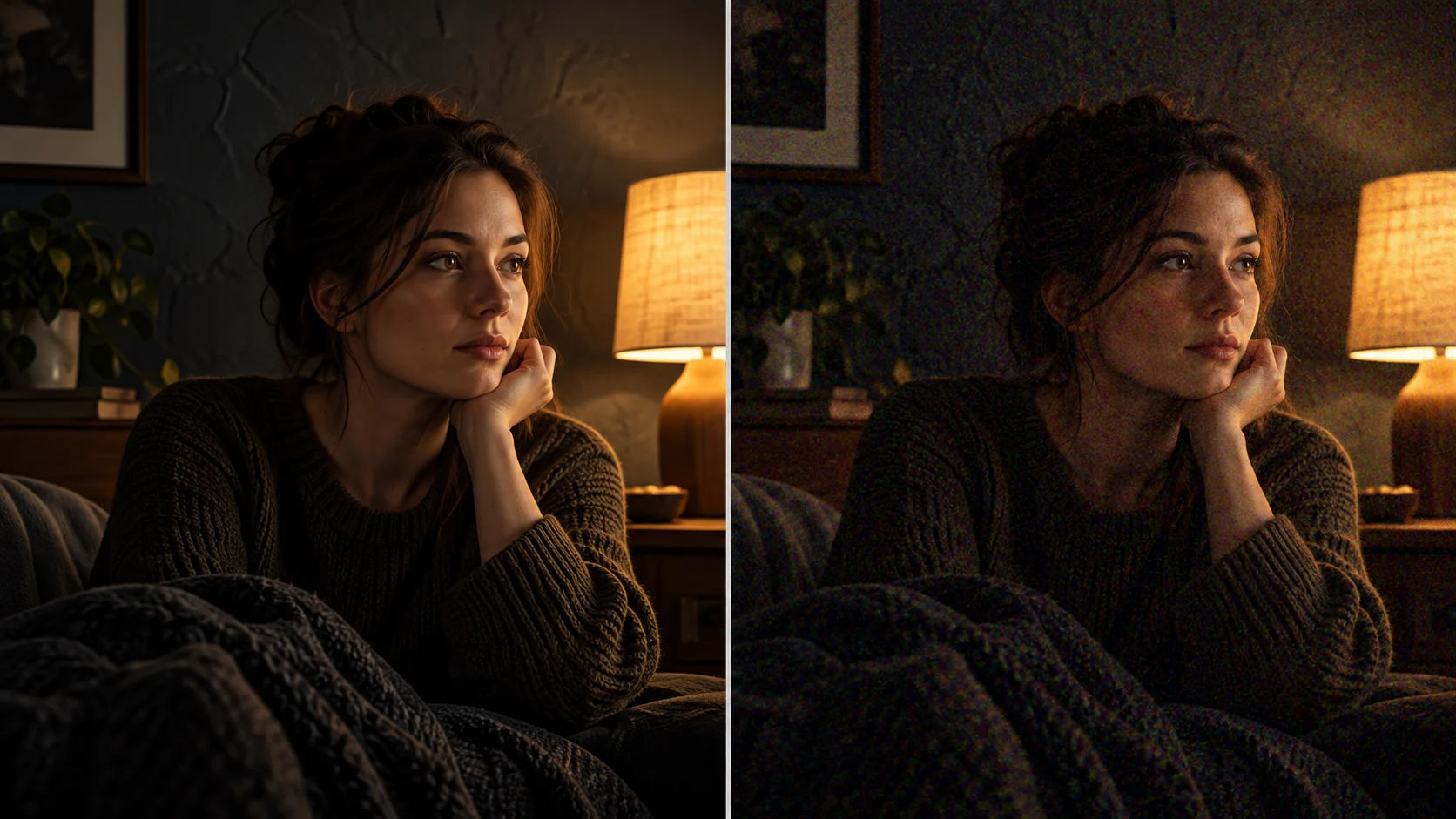
Why a higher ISO can look cleaner
On my a7S III, S-Log3 at ISO 12800 shows less visible noise than ISO 5000.
The reason is the second base sensitivity. Between 640 and the switch point, the camera raises the signal with extra gain. That lifts the noise along with the picture.
Past the switch, the camera uses a second gain setting made for high sensitivity. It adds less noise for the same brightness. So ISO 12800 can look cleaner than a lower number just before it.
The switch point depends on the picture profile, so test your own camera. Don't assume another profile behaves the same way.
Base ISO needs some context
Base ISO is often a useful starting point for a recording mode. But it doesn't mean every scene will look best there.
Some cameras offer more than one native gain setting. Switching between them can change noise behaviour. Check the manual for the mode you're actually recording.
Panasonic's S1H handbook shows one example of Dual Native ISO. Those numbers describe that camera, not every Sony, Nikon, or Panasonic model.
Don't copy a setting from a different model. A log mode may also use different starting values from a standard picture profile.
Make a test you can trust
- Put the camera on a steady support.
- Choose a face, a pale object, and a dark textured cloth.
- Lock white balance, shutter, aperture, lighting, and the recording profile.
- Record short clips at several ISO settings.
- Say each setting aloud so that the files remain easy to identify.
- Compare the clips on the same screen at the same size.
That first test shows what happens when ISO changes alone. The clips will have different brightness, so don't mistake brightness for quality.
For a second test, keep the finished brightness similar. Adjust a controlled light or exposure for each setting, and write down every change.
These tests answer different questions. Keep the notes separate, because otherwise the results become difficult to explain.
Look at shadows and movement
Pause on the dark cloth and look for texture. Then play the clip. Noise that seems small in a still may crawl during movement.
Look at the face, too. Aggressive camera noise reduction can smooth skin and fine hair. A clean looking shadow doesn't always mean a better picture.
Check highlights near a window or lamp. Raising ISO may change how much bright detail your recording can hold.
Export a short sample using your normal delivery settings. Compression can make noise more distracting, especially around movement and gradients.
Don't underexpose simply to keep the number low
A dark recording may need a large lift in editing. That lift can reveal weak shadow detail and noise already in the file.
A properly exposed higher ISO shot can sometimes work better. The answer depends on your camera and scene, so compare actual footage.
Protect important highlights, but don't abandon the face. If both won't fit, reduce the contrast in the scene or change the framing.
Our note on using available light can help you improve that balance.
What editing can and cannot repair
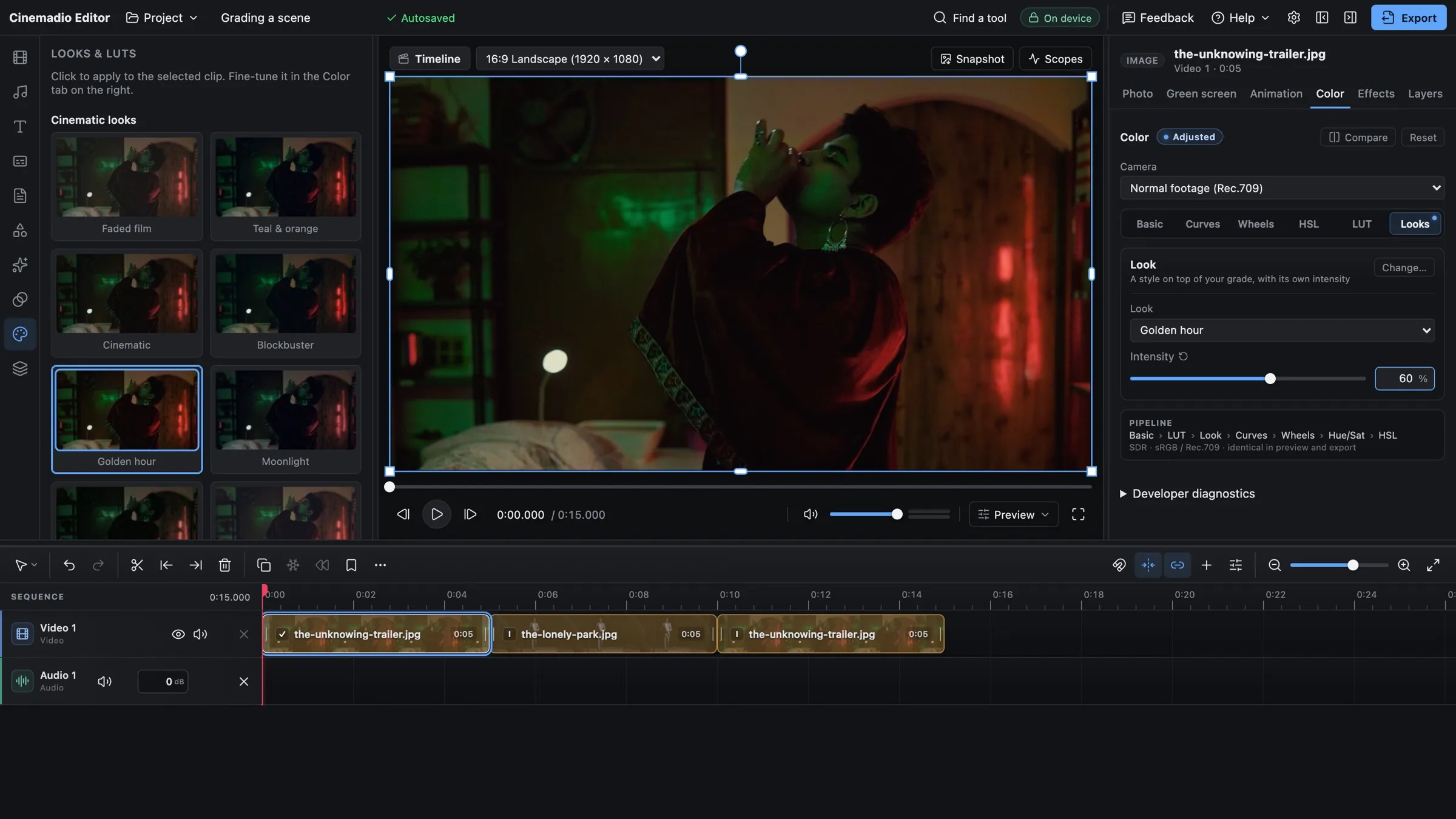
In the Cinemadio Editor, you can adjust exposure and colour. Keep those changes gentle if the shadows are already weak.
The current editor doesn't offer general sensor noise reduction. Its green screen Denoise control works on key cleanup. Clean up voice processes sound.
Neither control is a fix for noisy camera footage. If the shot needs dedicated video denoising, use a tool designed for that task.
Even then, inspect faces and movement for lost texture. Noise removal can soften the very details you wanted to keep.
Before the next shoot, record one careful camera test. Keep the original clips and your notes. Then choose an ISO range you have actually seen working.