24 October 2026 · 6 min read
How to Shoot a Green Screen That Keys Cleanly
A good key starts on set, not in the edit. Light the screen evenly, move your subject away from it, and the software has very little left to fix.
Green screen has a reputation for being hard. People shoot it, open the footage, and find a jagged edge and a green glow around their subject. Then they blame the software.
Most of the time, it isn't the software. The problem was decided on set, before anyone pressed record. A clean key is mostly about light. If the screen is lit evenly and the subject is lit separately, the edit takes a minute. If not, no tool in the world can fully fix it.
So this note comes in two halves. First, how to shoot it. Then, how to key it in the Cinemadio Editor.
Light the screen first
The screen should be one flat, even colour. That's the whole job. Any dark patch or bright patch is a place where the key can go wrong.
Light it from both sides, a little in front, so that the light spreads evenly. Step back and look at it through your camera. Are there hot spots? Are there shadows in the corners? Fix those before you do anything else.
Expose for the screen as well. It should look like a normal, medium green. If it looks neon, it's too bright. If it looks muddy, it's too dark. A mid tone is easiest to remove.
Wrinkles are the other enemy. A creased cloth catches light in lines, and every line becomes a tiny difference in colour. Stretch the fabric tight, or use a painted wall if you have one.
Then light your subject separately
This is the part people forget. The screen and the person need their own lights. If you use one light for both, you'll never get the balance right.
Think about the background you'll put behind them. If it's a sunny street, your key light should come from where that sun would be. If it's a dark room, keep your light soft and low. Viewers can't always say what's wrong, but they feel it when the light on a person doesn't match the world around them.
A back light, a soft light from behind and above, helps too. It puts a thin edge of light around hair and shoulders, and that edge makes the person look like they belong in the scene.
Move them away from the screen
If your subject stands right against the screen, green light bounces off it and onto their skin, hair and clothes. That glow is called spill, and it's the main reason cheap keys look cheap.
Therefore the cure is distance. Aim for at least two metres between the person and the screen, and more if your room allows it. It also keeps their shadow off the screen, so that you don't have a dark patch to fix later.
Small rooms make this hard, but there's a way round it. Use a longer lens and move the camera back. That way the person can stay a good distance from the screen and still fill the frame.
Think about what people wear
Check the wardrobe before the day, not on it. Anything green will vanish. So will anything close to the screen's colour. Shiny things, like jewellery, glasses and glossy fabric, pick up green reflections.
Fine hair and loose fabric are harder to key than a solid jacket. You can still shoot them, but the lighting and the distance matter even more. Most of the time it works out fine, but it's better to know in advance.
Shoot the cleanest picture you can
Keep your ISO low. Noise makes the edge of a key shimmer, because every grain is a tiny change in colour. Use the best quality your camera can record. Heavy compression smears the colour near edges, and that's exactly where you need detail.
And do a test. Before the real shoot, record ten seconds of your subject moving around. Key it. If it works, carry on. If it doesn't, you have fixed the problem while everyone is still on set.
Now key it in the editor
Once you have good footage, the edit is the easy bit.
- Put the clip you shot on a track, and put your new background on a track below it.
- Select the green screen clip.
- Open the Green screen tab in the panel on the right.
- Click Remove green screen.
The editor looks at a few frames of the clip, finds the screen, and removes it. It's built to keep fine hair and soft edges. It copes with uneven light and shadows on the screen. And it takes the green tint off the person. Your footage stays on your computer the whole time.
If it picks the wrong colour, click the Pick button and then click the screen in the preview. That tells it exactly what to remove. The Auto button finds the screen again from the frame you're on. And if your screen is blue, the same steps work.
Check the matte
Here's a trick that saves a lot of squinting. Switch on Show matte, and the preview turns black and white. White is what you're keeping. Black is what disappears.
Now look closely. If you see grey inside your subject, the key is eating into them, and you'll see holes against some backgrounds. If you see grey specks in the background, the screen isn't fully removed. Neither is a disaster, but you want to know before you export.
Then fine tune. The sliders are named Strength, Solid, Shrink, Feather, Denoise and Spill. You don't need to touch them all.
- If the background isn't fully gone, raise Strength a little.
- If the subject looks see through, raise Solid.
- If you see a thin green line around the edge, use Shrink gently.
- If the edge looks harsh, add a little Feather. Too much will look like a cut out.
- If the edge looks blocky or noisy, add a little Denoise.
- If skin or clothes look slightly green, raise Spill.
Make small moves. A key that's nearly right usually becomes perfect with one or two tweaks. If you're chasing it with every slider, go back and look at the lighting. The footage is probably the issue.
Finally, match the two worlds
A perfect key can still look fake if the person and the background don't feel like the same place. Check three things. Is the brightness similar? Is the colour similar, warm against warm and cool against cool? Does the light fall from the same side?
A small colour adjustment on the person usually does it. Our note on colour grading will help with that.
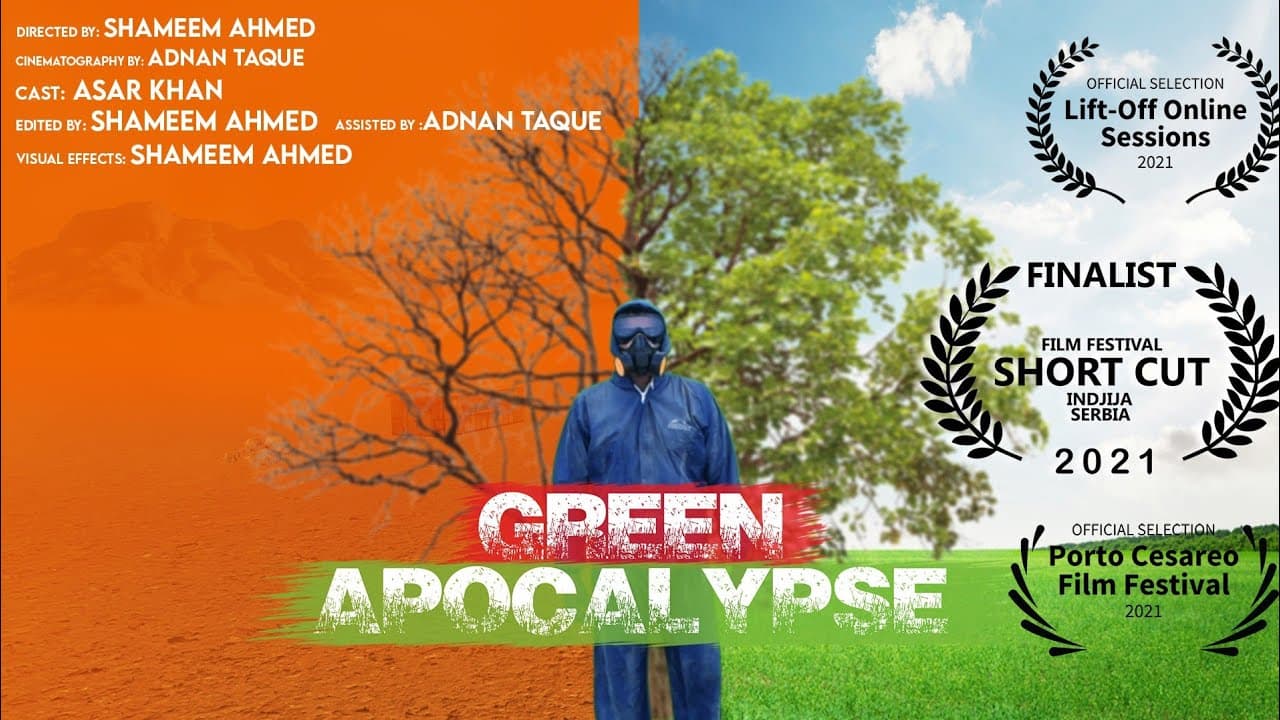
Want to see a green screen film from us? Green Apocalypse is a science fiction short about deforestation. It was made on a green screen.
And if you want to try keying your own footage, open the Cinemadio Editor. It's free, with no account and no watermark.