24 October 2026 · 7 min read
How to Edit a Video by Editing Its Words
Cutting a talking video by dragging a playhead is slow. If you edit the words instead, the video follows. Here is how that works, and where it still needs your ears.
Anyone who has cut a talking video knows the feeling. You play a sentence. You stop. You drag the playhead back a little. You split, you trim, you play it again. Then you do the same thing for the next sentence. An hour later you have three minutes of video and a tired wrist.
There's a quicker way. If your footage is mostly someone talking, you can edit it like a document. You read the words, you delete the ones you don't want, and the video follows. People call it editing by transcript. It sounds like a gimmick, but it isn't.
This note walks through how it works in the Cinemadio Editor. It also covers the places where you still need to stay awake.
Why words are easier than waveforms
A waveform shows you loud and quiet. It tells you nothing about meaning. So you end up listening to everything, again and again, just to find the one sentence you wanted to cut.
Words are different. You can skim them. Your eyes move much faster than your ears, so you can spot a repeated phrase or a long tangent in a few seconds. Then you cut it and move on.
It changes how you think, too. When you edit by ear, you tend to protect every take. When you edit by text, you start asking a better question. Does this sentence earn its place?
How to do it in the editor
You need a clip with clear speech on the timeline. Then follow these steps.
- Select the clip.
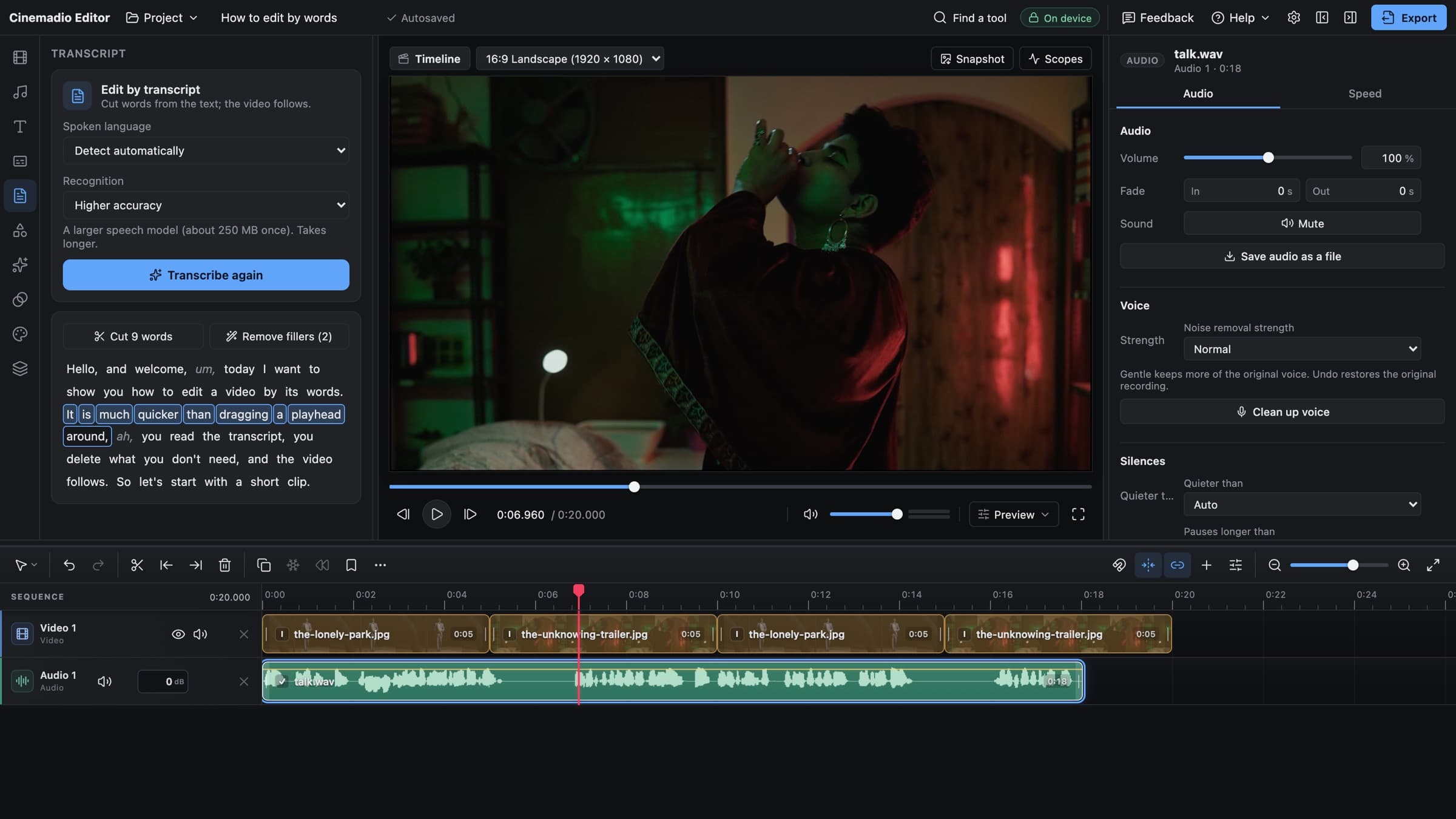
- Open the Transcript tool in the left rail.
- Choose the spoken language, and pick Higher accuracy or Faster.
- Click Transcribe selected clip and let it run.
The first time you do this, the editor loads a speech model. Higher accuracy is about 253 MB. Faster is about 78 MB. It downloads once from the editor's own website and then stays in your browser. After that it works even without a connection. Your video is never uploaded, because the speech is recognised on your own computer.
So which one should you pick? If you have the time and the space, start with Higher accuracy. It copes better with quiet voices and accents. Faster is fine on a slow connection. It's also fine if you only want a quick rough cut and plan to check everything by ear anyway.
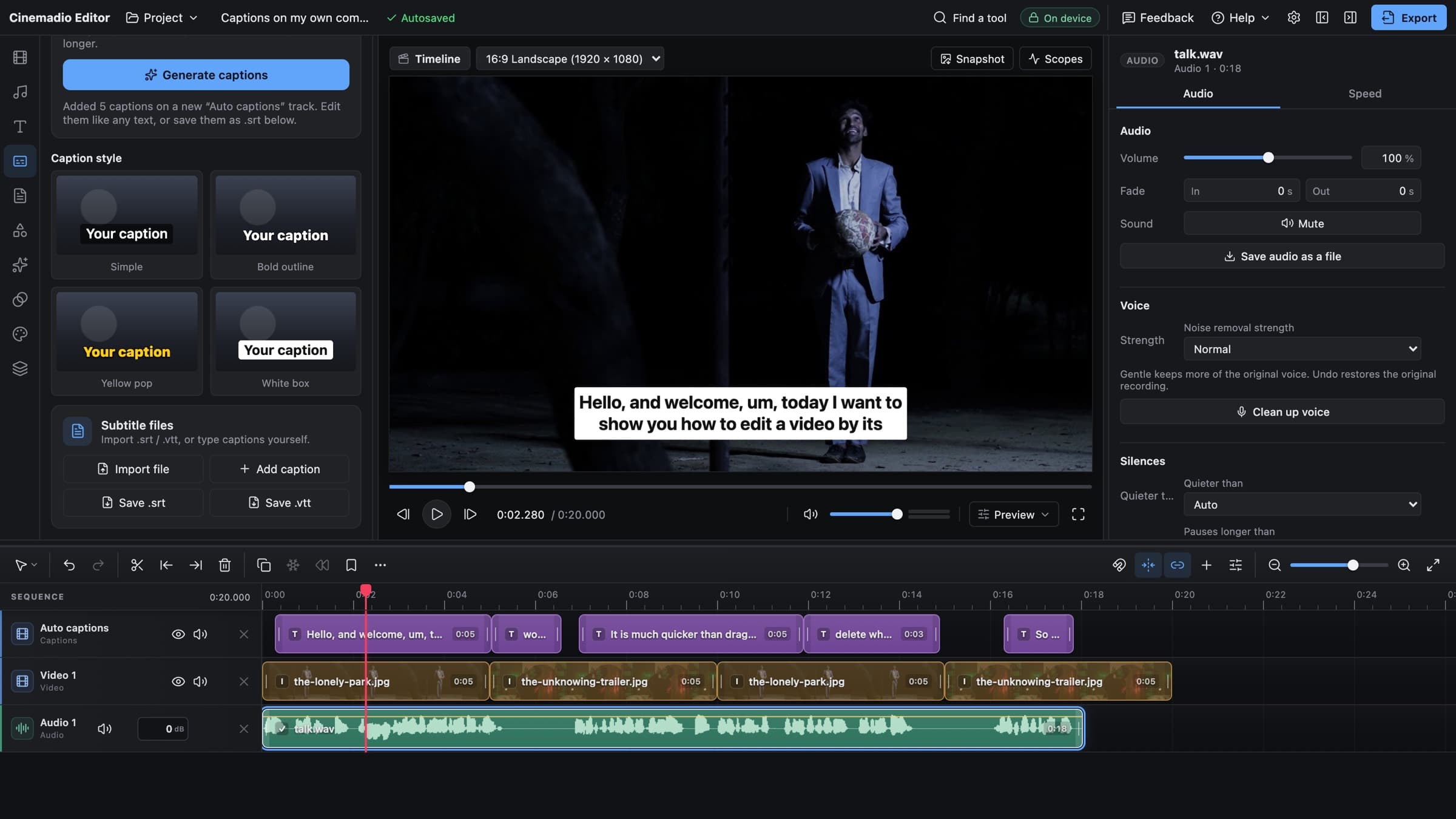
When it finishes, the transcript appears as a block of words. Click a word and the playhead jumps to it. Hold Shift and click another word to select everything in between. Then press Delete, or click Cut. The video closes the gap for you, and the pause after those words goes too.
Words you have cut stay on screen with a line through them, so that you can always see what you removed. And if you change your mind, undo brings them back.
The filler button
Above the transcript there's a button called Remove fillers. It shows a count, for example Remove fillers (14), so you know how many it found before you click. It looks for the usual suspects. Um, uh, er and hmm.
It's tempting to click it and walk away. Don't, at least not straight away.
Some fillers are doing a job. A small "um" before a hard answer makes a person sound honest. Take every one of them out and the speaker can start to sound like they're reading a script. Therefore we like to remove the ones that are clearly nervous noise, and keep the ones that sound like thinking.
A simple test helps. Play the sentence with the filler. Then play it without. If you can't hear a difference, cut it. If the sentence feels colder, leave it. And if you want to keep a few, skip the button and cut by hand. Click the ones you want gone and press Delete.
Rough cut with words, fine cut with your eyes
Transcript editing is brilliant for a first pass. It isn't the finish. After you cut words, go back to the timeline and watch the result.
Here's why. A cut that looks perfect in text can still sound abrupt. Maybe a breath got clipped. Maybe the speaker's tone jumps between two takes. Maybe the picture jerks because their head moved between the two halves. None of that shows up in a transcript.
So treat the words as a fast way to get the structure right. Remove the false starts. Remove the repeats. Remove the tangent that made sense at the time. Then switch to the timeline and polish each join.
Fixing the jump
When you cut out the middle of a sentence, the speaker's head often jumps a little. That's a jump cut. Sometimes it's fine. Plenty of online videos use it on purpose.
But if it bothers you, there are easy fixes.
- Cover the join with a cutaway. A close shot of hands, a screen or the room works well.
- Scale the clip up a little after the cut, so the change looks planned.
- Move the cut to a moment when the speaker already looks away.
Pick one and stay consistent. If you punch in on one cut and not the next, viewers notice.
Where it struggles
Speech recognition is good now, but it isn't magic. It does best with one clear voice, close to the microphone, in a quiet room. It does worse with a few things.
- Mumbling or very fast speech.
- Music or traffic under the voice.
- Two people talking at once.
- Names, brands and technical words it hasn't met before.
If your audio is noisy, clean it up first. Our note on fixing bad audio covers that. A cleaner voice usually means a cleaner transcript, and therefore fewer mistakes for you to fix.
Read the text as you go. If a word looks wrong, the transcript is probably wrong, not you. The audio underneath is still correct, so cutting is safe. Just don't trust the spelling if you plan to reuse the words as captions.
When not to use it
Editing by transcript is made for speech. It's a poor fit for a scene where the performance matters more than the words. In a dialogue scene, the pause before a line is part of the acting. A transcript can't show you that, and you shouldn't cut it blind.
The same goes for a travel film or a music video. There's nothing to read. Use the timeline, and use your eyes.
A routine that works
This is the order we would follow on a talking video.
- Transcribe the clip.
- Delete the false starts and repeated sentences.
- Cut the tangents. Be brave here.
- Remove the fillers that sound like nervous noise.
- Go to the timeline and listen to every join.
- Remove long silences if the pace still drags.
It looks like a lot of steps, but it moves quickly. Most of it's reading rather than listening, and that's why it's fast.
You can try all of this in the Cinemadio Editor. It's free. There's no account and no watermark, and your footage stays on your computer the whole time.
If you have never edited by transcript, start with a short clip. Two minutes is plenty. You'll see the point almost straight away.