24 October 2026 · 6 min read
How to Cut the Silences Out of a Talking Video
Long pauses make a good talker sound unsure, and cutting them by hand takes ages. Here is how to remove silences fast, and how to keep the pauses that actually matter.
Watch any talking video that drags and you'll find the same culprit. It isn't the content. It's the gaps. A breath here, a "let me think" there, three seconds of nothing while someone finds their notes. Each one is tiny. Together they make a smart person sound unsure.
The fix is obvious. Cut them out. The trouble is that doing it by hand is miserable. You zoom in, hunt for the quiet bit, split on both sides, delete, close the gap, and repeat. A ten minute recording can hold hundreds of pauses.
So let the editor find them for you. Then you decide how tight the result should feel.
First, a word in defence of silence
Before you remove everything, pause for a second. Not all silence is bad.
Some silence is thinking. Some is a mistake. Some is a beat that lets a sentence land. And some is a reaction, like the quiet after someone says something hard. If you take out all of it, the video turns into a machine gun. Every sentence arrives at the same speed, and nothing has weight.
So the goal isn't no silence. The goal is the right silence. Cut the dead air and keep the air that does something.
How to do it in the Cinemadio Editor
You'll find the tool on the clip itself. Here's the path.
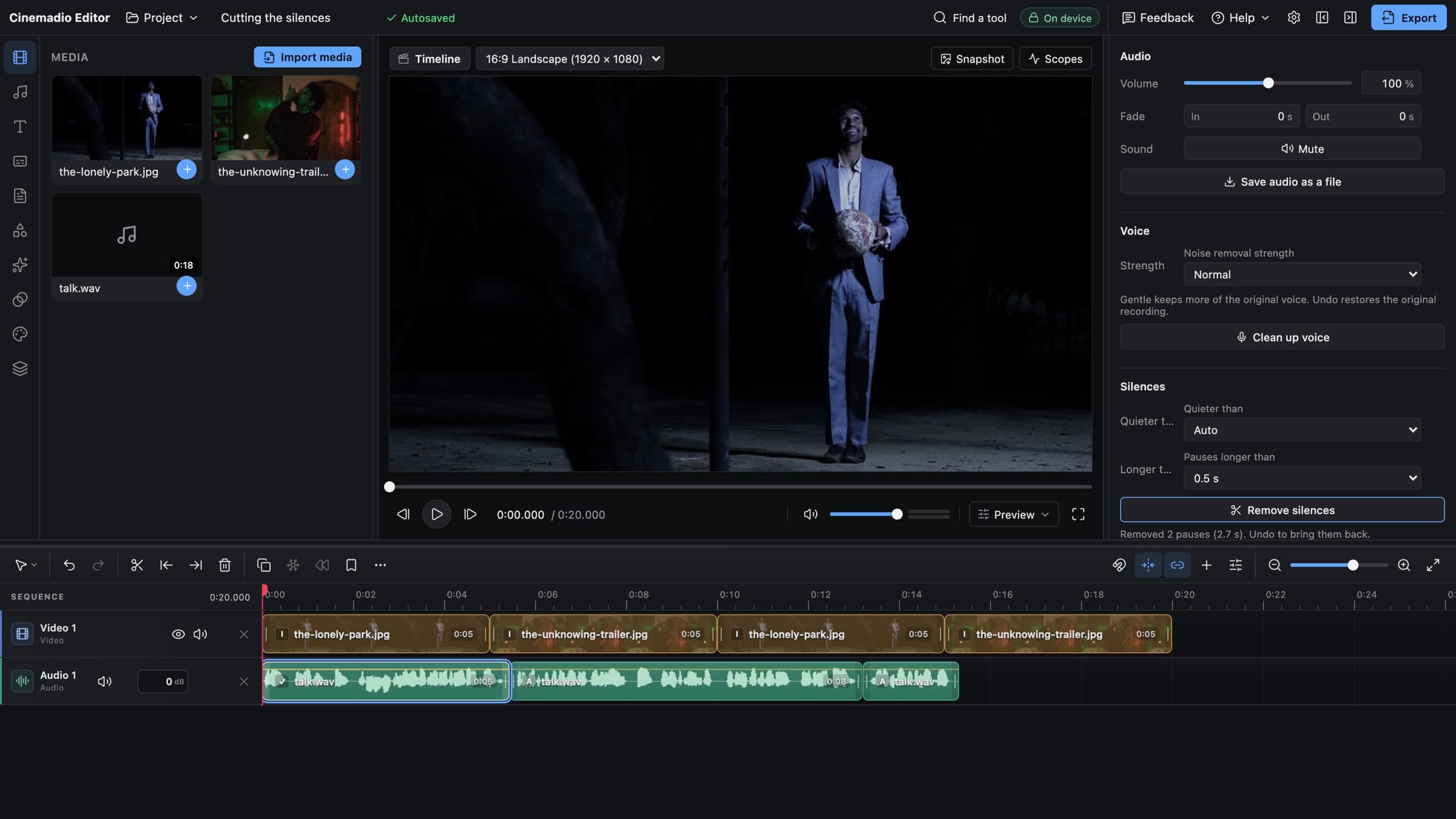
- Select the clip that has the speech.
- Open the Audio tab in the panel on the right.
- Scroll down to the section called Silences.
- Leave Quieter than on Auto, and set Longer than to 0.5 s.
- Click Remove silences.
When it finishes, you get a short message. It tells you how many pauses it removed and how much time that saved. Linked picture and sound are cut together, so nothing slips out of sync. The whole job is one undo step. If you don't like it, press undo and try again.
What the two settings really mean
Quieter than decides what counts as silence. Auto looks at your recording and works it out for you. It finds the background noise level, finds the speech level, and picks a line in between. For most clips, Auto is right. If you want more control, you can pick a fixed level such as minus 50, minus 40 or minus 30 decibels. A higher number, like minus 30, treats more sounds as silence.
Longer than decides how long a gap has to last before it gets cut. You can choose 0.3, 0.5, 1 or 2 seconds.
This is the setting that changes the feel, so it's worth a little thought.
- At 0.3 seconds, you remove almost every pause. It sounds fast and sometimes breathless.
- At 0.5 seconds, you keep natural breaths but lose the dead air. This is a good place to start.
- At 1 second, only the real gaps go. It suits interviews and calm talk.
- At 2 seconds, you only remove the long stalls. Use it when the pacing and emotion matter.
The editor also leaves a small cushion of about a tenth of a second on each side of the speech. That's why the cuts don't clip the start of your words.
Match the setting to the video
A tutorial wants to move. People are there to learn something, so tighter is kinder. Try 0.3 or 0.5 seconds.
An interview needs room. The guest is thinking out loud, and if you squeeze every pause, they stop sounding like themselves. Try 1 second.
A personal story or a documentary voice needs even more air. Here the pause is part of the feeling. Try 2 seconds, or skip the tool and cut by hand where it really counts.
If you aren't sure, run it at a looser setting first. You can always run it again at a tighter one, but you can't easily put back a pause you removed in the wrong place. Well, you can with undo. But only if you notice straight away.
When nothing happens
Sometimes you click the button and it finds almost no pauses. Don't worry, it's usually the room.
The tool listens for quiet. If your recording has a loud fan, a busy road or an air conditioner humming away, the gaps between words aren't quiet at all. They're just a different kind of noise. Therefore the tool sees no silence to remove.
There are two ways to fix this. You can raise the threshold, for example to minus 30 decibels, so that louder background sound still counts as silence. Or you can clean up the voice first. Our note on fixing bad audio shows how. Once the noise is lower, the silences become easy to find.
Do it early
Order matters here. Remove silences before you add music, cutaways, titles and captions. If you do it afterwards, the timing of everything else can shift, and you spend your evening fixing things that were fine.
So the order we would suggest is simple. First cut the content. If the video is mostly speech, edit by words to drop the false starts and tangents. Then remove the silences. Then add everything else on top.
And then watch it. This part isn't optional. Play the whole video through once, with your eyes on the picture. Look for places where a head moves oddly between two cuts. Listen for any sentence that feels rushed. If one does, undo, or put the cut back by hand.
A few small habits that help
- Test on one minute before you run it on the whole recording.
- Record a few seconds of silence before you start talking. It gives the tool a clean example of your room.
- Leave a beat at the very start and end of each take. It makes cutting easier later.
- Keep a slightly longer pause before your biggest point. Then protect it.
None of this is hard, but it does need a little taste. The tool is fast, so the thinking is the part that's yours. Use it to remove the boring gaps, but don't let it flatten the person on screen.
If you want to try it, open the Cinemadio Editor and drop in a talking clip. It's free, it needs no account, and your video never leaves your computer.