24 October 2026 · 6 min read
How to Add Captions Without Uploading Your Video
Most free caption tools want your video on their server first. You don't have to do that. Here is how to make accurate captions on your own computer and burn them in.
Captions used to be a chore people skipped. Now they're one of the first things viewers notice. Plenty of people watch with the sound off, on a train, in a queue or in bed next to someone asleep. And for viewers who are deaf or hard of hearing, captions aren't a bonus. They're the whole point.
So you want captions. Fine. But look at how most free tools work. You upload your video to their server, wait, and download the result. That's okay for a clip of your cat. It's less okay for a client's unreleased product, an interview, or a film you haven't shown anyone yet.
There's another way. You can make the captions on your own computer, and the video never goes anywhere. Here's how that works in the Cinemadio Editor.
Generate the captions
- Put your clip on the timeline.
- Open the Captions tool in the left rail.
- In the Auto captions card, choose the spoken language, or let it detect one.
- Pick whether to caption the selected clip or everything with speech on the timeline.
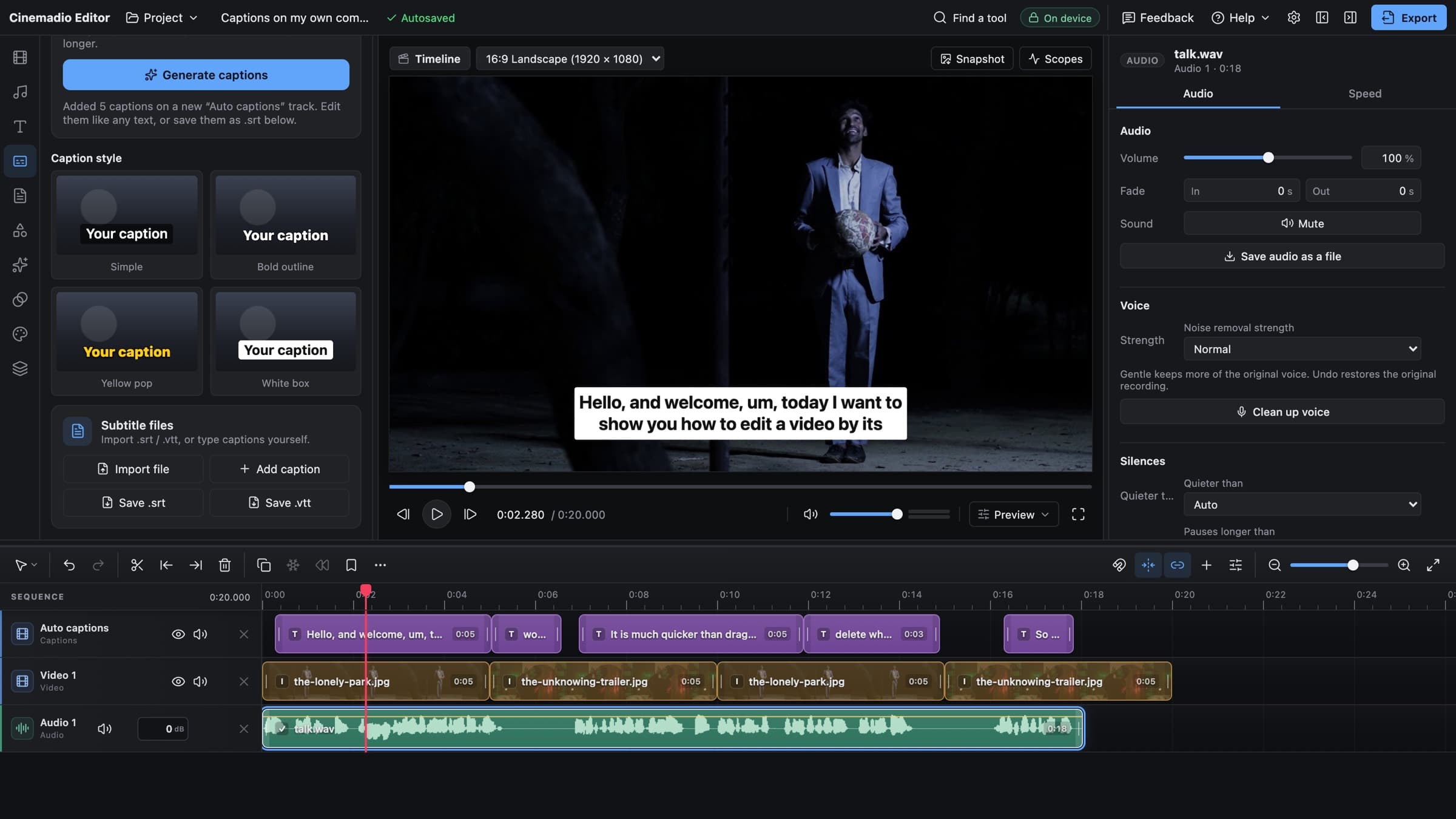
- Click Generate captions.
The first time, the editor loads a speech model. Higher accuracy is about 253 MB and Faster is about 78 MB. It comes from the editor's own website, and then your browser keeps it. After that, captions work even with no connection. The speech is turned into text on your computer, so your audio is never sent to anyone.
When it finishes, a new Auto captions track appears. It's one undo step, so you can throw it away and try again with a different setting.
If your video is in another language, there's a Translate to English option. It's handy, but treat the result as a draft. Translation is harder than listening, and a person who speaks both languages should check it.
Read them with the sound off
This is the step people skip, and it's the one that matters most.
Speech recognition is very good now, but it still makes mistakes. It stumbles on names, on brands, on technical words and on anyone speaking fast. A wrong word in a caption is worse than no caption, because the viewer trusts it. Therefore, never publish captions you haven't read.
So mute the video and read it from start to end. Fix anything odd. Pay extra attention to names, numbers and places. If you can, ask someone else to read it too. A second pair of eyes catches things you have stopped seeing.
The editor gives you a small head start here. Sound notes like "music" are dropped, so you don't end up with brackets all over the screen. Each caption also stays up long enough to read, where there's room.
What about accents and noisy audio?
Both make the job harder, but neither makes it impossible. If the speaker has a strong accent, try Higher accuracy. It usually copes better. If the recording is noisy, clean it up first, because the model hears the noise as well as the voice.
Also check the quiet parts. Whispered lines and mumbled asides are the first things to go missing. If a caption is absent where someone clearly spoke, add it by hand with the Add caption button. It places a new caption at the playhead.
Make them easy to read
A caption has one job. It should be read in a glance, then forgotten. Here's what helps.
- Keep it to two lines at most. One is better.
- Break lines where a person would pause, not in the middle of a phrase.
- Don't cover faces. Move the caption if it sits on someone's mouth.
- Keep enough contrast so that it can be read on a bright shot and a dark one.
The Captions tool has four ready made looks, called Simple, Bold outline, Yellow pop and White box. Click one and every caption changes together. If you tweak a single caption and like it, use Apply this style to all captions so the rest match.
Which look should you pick? Simple suits calm, serious video. White box is the safest for busy backgrounds, because the text always has something solid behind it. Bold outline and Yellow pop are louder. They work on short social clips, but they can feel shouty on a documentary.
Burn them in, or keep them separate
There are two ways to deliver captions, and they're good for different things.
Burned in captions are part of the picture. Everyone sees them, on every platform, and you control exactly how they look. That's why they suit short clips for social apps. In the editor, the Export dialog has a switch called Burn captions into the video, and it's on by default.
A subtitle file is separate. In the Captions tool you can save your captions as an .srt or a .vtt file. You upload the file next to your video on a site such as YouTube or Vimeo. Viewers can then switch the captions on or off. They can even pick another language if you have supplied one. This is the better choice for longer videos. It's also friendlier for people who need to change the size of the text.
You don't have to choose. Save the file for the long version, and burn them in for the short cut. It takes a minute.
Captions for vertical video
If you're making video for phones, one more thing to remember. Apps put buttons and text over the bottom of the screen. So if your captions sit right at the bottom, they can end up hidden behind someone's username.
Move them up a little, into the lower middle of the frame. Make the text a bit bigger than you think you need. Then check it on a real phone before you post. Our note on turning a wide video into a vertical one goes into the framing side of this.
A quick checklist
- Clean the audio first if it's noisy. Better sound gives better captions.
- Generate the captions.
- Mute the video and read every line.
- Choose a look that suits the mood.
- Save a subtitle file, or burn them in, or both.
That's really all there's to it. If your recording has long pauses, you may also like to cut the silences before you caption, so that the timing is already tidy.
You can try it in the Cinemadio Editor. It's free, there's no account and no watermark, and your video stays on your computer from the first second to the last.