24 October 2026 · 6 min read
How to Turn a Wide Video Into a Vertical One Without Losing the Person
Making a wide shot vertical is easy. Keeping the person in frame is the hard part. Here is how auto reframe helps, and how to shoot so it has an easy job.
Here's a situation most of us end up in. You shot a nice wide video, and now you need a vertical version for your phone. It looks easy. Crop the sides and you're done.
But then you try it. The speaker is standing on the left, so the crop shows a wall. You move the crop. Now they walk to the right, and they're gone. You spend an hour dragging the frame around, and it still looks nervous.
That's the real problem. Cropping is easy. Following the person is the hard part. In this note we'll look at how the Cinemadio Editor does it for you. We'll also look at how to shoot so that it has an easy job.
Start with the right canvas
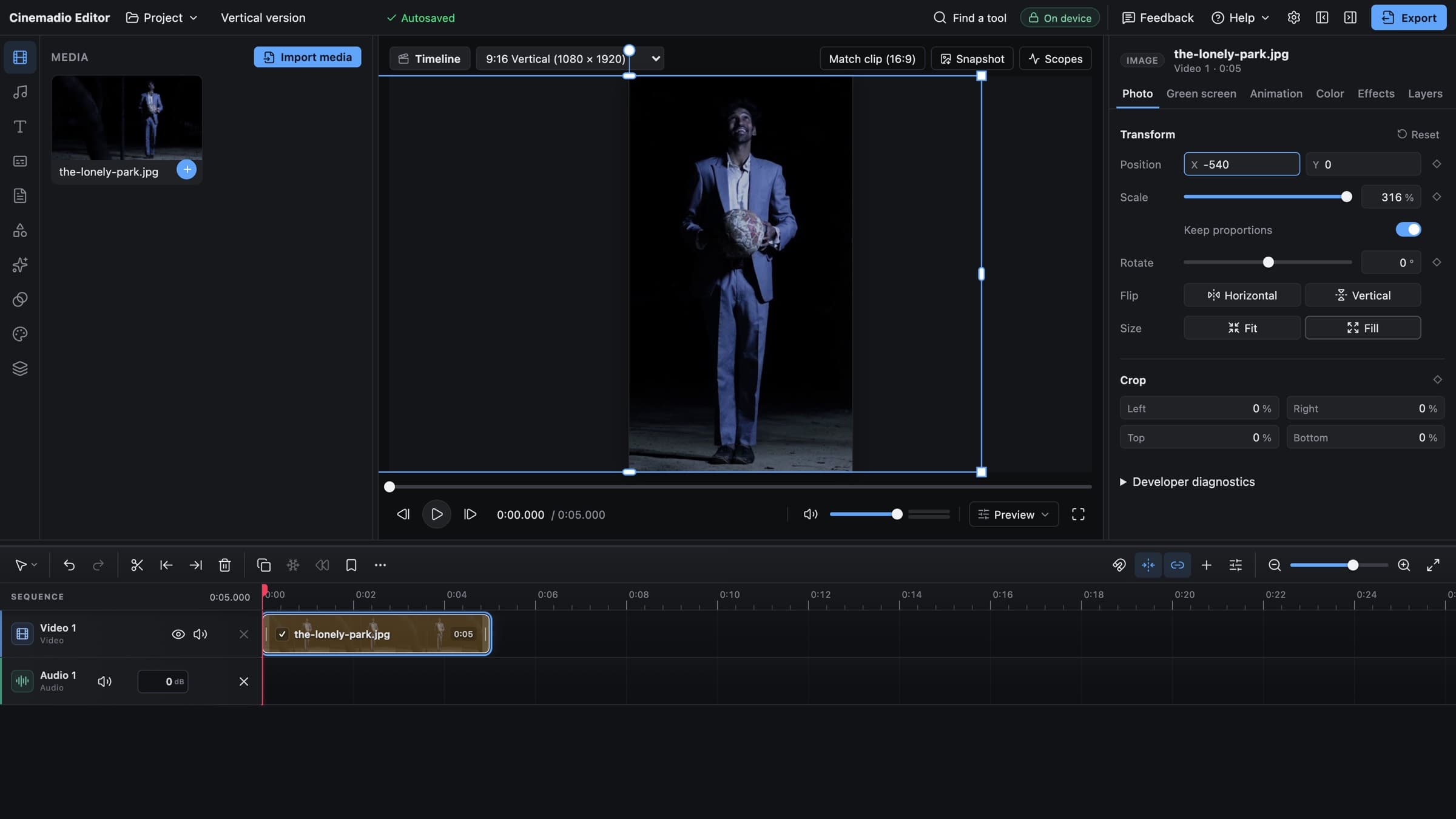
Before anything else, tell the editor you want a vertical video. Otherwise it will keep a wide frame, and there's nothing to reframe.
The easiest way is to start a new project from the blank 9 by 16 template. You'll find it under Project, then New from template. Then bring your wide clip in. If you already have a project open, you can also change the shape under Details and Modify.
Once the canvas is vertical and the clip is wider than it, the editor knows what to do.
Let auto reframe do the first pass
Right click the clip on the timeline. Choose Auto reframe (follow people). Then wait a moment.
Here's what happens behind the scenes. The editor looks at the clip about twice every second and finds the people in it. It picks the biggest person as the subject, and it includes anyone who is at least half as big. Then it aims the frame so that the face sits about a third of the way down the picture. That's where your eye expects it. Finally it smooths the movement over a second or so, so that the frame glides instead of jumping.
All of this runs on your computer. Your footage isn't uploaded, and the model that finds people is a small one that loads from the editor's own site.
The result is a set of position keyframes on the clip, with the clip scaled up to fill the frame. That detail matters, because keyframes are something you can see and edit. If auto reframe gets one moment wrong, you don't start again. You nudge one keyframe. And the whole thing is one undo step.
Check it properly
Don't just trust it. Play the clip from the start, then jump to the middle, then to the end. Watch the edges of the frame. Look for three things.
- Does the person ever touch the edge or get cut off?
- Does the frame move when nothing needs it to?
- Is there enough space above their head?
If the answer to any of these is yes, fix it by hand. Move the keyframe. Slow the move down. Sometimes the best fix is to remove a keyframe and let the frame stay still. A locked frame often looks calmer than a clever one. It may feel like giving up, but it usually looks better.
Where it gets confused
Auto reframe is clever, but it isn't a mind reader. It follows people, so it's only as good as the people in your shot. A few situations are tricky.
- When nobody is in the shot, there's nothing to follow.
- When there's a crowd, it can't tell who matters to you.
- When someone turns away, walks behind something or leaves the frame, it may lose them.
- When two people stand far apart, a vertical frame can't hold both.
In those cases, treat the automatic result as a rough draft. Keep what works and keyframe the rest yourself. If you need two people far apart, the honest answer is to cut between them rather than squeeze them into one tall frame.
Shoot with the crop in mind
The best reframe starts before you press record. If you know the video will end up vertical, a few habits make life much easier.
Keep the subject near the middle. A vertical crop takes a narrow slice from the centre of a wide frame. A person standing at the far edge will be cut off. Leave plenty of headroom, because a tall frame shows more sky than you expect. And try to avoid action at the very edges of the shot, such as someone entering from the side. They will arrive late in the crop.
Also, shoot wide on purpose. A loose frame gives you room to move around in. If you shoot tight, you have no spare picture to work with. It feels safe to get close, but it leaves the editor with nothing to crop.
The resolution trick
Here's a bit of arithmetic that's worth knowing. A vertical crop uses only part of the width of the frame, so you're throwing pixels away.
Say you shoot 4K. That's 3840 by 2160. If you crop a vertical frame at full height, it's about 1215 pixels wide. A vertical video at full HD needs 1080 across. So you have enough, and the picture stays sharp.
Now say you shot at 1080p. The same crop is only about 607 pixels wide. To fill a 1080 wide frame, the editor has to scale it up by almost double. It will look soft. Therefore, if you know you want a vertical version, shoot 4K and give yourself room.
Don't forget the titles and captions
Once the picture is working, think about the text. Phone apps cover the bottom of the screen with buttons and names. So keep captions and titles a little higher than you would on a wide video. Make them larger, too. We cover this in more detail in our note on adding captions.
Then export. The Export dialog has a simple question at the top, What's this video for? Share online is a good choice for most social clips.
That's the whole workflow. Set the canvas, run auto reframe, check it, fix what needs fixing. It's much quicker than dragging a crop around for an hour.
You can try it in the Cinemadio Editor. It's free, there's no account and no watermark, and your footage never leaves your computer.