24 October 2026 · 7 min read
How to Clean Up Bad Audio Before You Buy a New Microphone
Before you spend money on gear, try fixing what you have. Steady noise is easy to clean up. Echo is not. Here is how to tell the difference, and what to do about each.
Bad audio is the thing viewers forgive least. They'll put up with a soft picture and a wobbly shot. But they'll leave if they can't hear the voice, or if it hurts to listen.
So the instinct is to buy a better microphone. Sometimes that's right. Often it isn't. Before you spend any money, find out what's actually wrong with your recording. Some problems are easy to fix. Some can't be fixed at all. Knowing which is which will save you a lot of time.
Two kinds of bad audio
Think of it as steady noise and everything else.
Steady noise is the kind that just sits there. A fan. An air conditioner. The hum of a fridge. Distant traffic. It doesn't change much from second to second, and that's exactly why software can handle it. It learns what the noise sounds like, then takes it away from the voice.
Everything else is harder, but it's worth knowing why. Echo, for one. A sudden bang. A dog barking. Someone else talking in the next room. Music in the background. These change all the time, so there's no pattern to learn. If your problem is one of these, the best fix is to record it again.
So listen to your clip with headphones, and ask a simple question. Is the trouble steady, or does it come and go? If it's steady, read on.
Clean up the voice
Here's how to do it in the Cinemadio Editor.
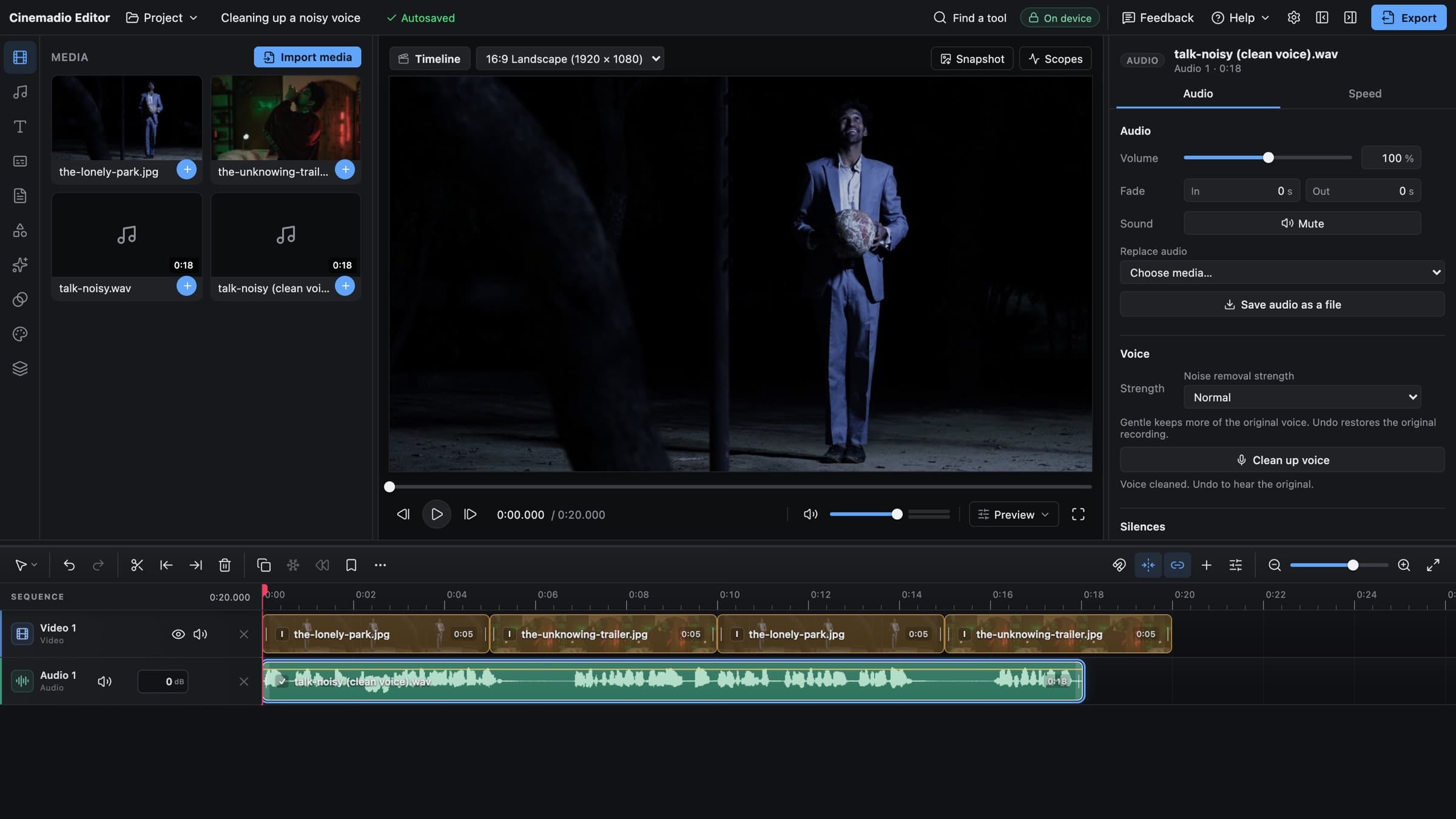
- Select the clip that has the voice.
- Open the Audio tab in the panel on the right.
- Find the section called Voice.
- Choose a strength, which is Gentle, Normal or Strong.
- Click Clean up voice.
The editor removes fans, traffic, hum and room noise from the speech. It does the work on your computer, so your recording is never uploaded. When it's done, the cleaned version replaces the sound on the clip. If you don't like it, undo and you'll hear the original again.
Which strength should you pick? Start with Normal. If the voice sounds thin, watery or a bit robotic, go back and try Gentle. Gentle keeps more of the original voice, and a little leftover noise is usually better than a damaged voice. Strong is for very noisy recordings, but it deserves a careful listen.
The cleanup is built to protect speech. It tries to leave the voice alone while it takes the noise away, and it keeps the original timing and audio channels. Still, trust your ears. Play the clip, undo, play it again, and compare. It takes ten seconds and tells you everything.
What it can't fix
Let's be honest about the limits. No tool can do these things well.
- Echo. If the voice bounced around an empty room, the room is baked into the recording.
- Clipping. If the recording was too loud and distorted, the damage is permanent.
- Other voices, music and sudden noises.
- Mumbling. If it wasn't clear to begin with, it won't become clear.
If you have one of these problems, the lesson is for next time. Which brings us to the best fix of all.
Fix it at the source
The cheapest improvement you can make is distance. A basic microphone close to someone's mouth almost always sounds better than an expensive one across the room. That's because the voice gets louder compared to the noise, so there's less noise to remove in the first place.
A few other habits help.
- Turn off the fan, the air conditioner and the fridge door alarm for the take.
- Record in a room with soft things in it. Curtains, a sofa and a bed all soak up echo.
- Set your level so that loud speech peaks somewhere around minus 12 decibels. That leaves room for a surprise without distorting.
- Wear headphones while you record. You'll hear the problem when it happens, not three days later.
- Record twenty seconds of the room with nobody speaking. It's called room tone, and it's useful when you need to fill a gap.
We wrote about this side of things in our note on building a sound plan before you roll camera. It's worth a read if you're about to shoot.
Shape the voice a little
Once the noise is gone, the clip has an EQ and a compressor further down the same Audio tab. You don't need to be an engineer to use them.
The simplest thing is the low cut. It filters out the deep rumble below about 80 hertz, which is the sound of traffic, handling noise and desk bumps. Voices don't live down there, therefore switching it on costs you nothing. It just makes things cleaner.
After that, go gently. The compressor evens out loud and quiet moments, so that the listener doesn't have to keep reaching for the volume. A little goes a long way. If you can hear it working, you've pushed it too far.
And remember what EQ can't do. It can shape what your microphone captured. It can't add what the microphone missed.
Keep the music out of the way
If you have music under a voice, there's a feature that helps a lot. In the Audio tool there's a setting called Lower music when someone speaks. It turns the music down while anyone is talking, then brings it back up in the gaps. It's one undo step, and it saves you from drawing the volume by hand.
It sounds like a small thing, but it matters. When music and speech fight, the viewer gets tired without knowing why.
Set the loudness last
The final step is loudness. You want your video to sound about as loud as everything else people watch, so that nobody has to touch the volume.
The editor can measure this for you. Choose Normalize loudness and pick a target. You'll see three, which are minus 14, minus 16 and minus 23 LUFS. LUFS is a measure of how loud something feels over time, not just how loud the biggest peak is.
For video that goes online, minus 14 is a common choice. Minus 16 is a touch quieter. Minus 23 is a broadcast standard, so you'd only need it if a television channel asks for it. Platforms change their rules now and then, so it's worth a quick check of the one you're using.
Do this last. If you change the voice or the music after normalising, the balance moves.
Always check on a phone
Here's a small test that catches a lot. Play your finished video on a phone speaker, and then through cheap earbuds. That's how most people will hear it.
If the voice is clear on both, you're done. If it isn't, go back one step. Usually it means the voice needs to be a little louder, or the music a little quieter.
The order, in one list
- Listen and decide if the problem is steady.
- Clean up the voice, starting with Normal.
- Switch on the low cut and add a light touch of compression.
- Lower the music under speech.
- Normalise the loudness.
- Check on a phone.
It looks like a lot of steps, but each one takes seconds. Most of the work is listening, and you were going to do that anyway.
If you plan to caption or edit by words afterwards, do this first. A cleaner voice gives you a cleaner transcript, as we explain in our note on editing a video by its words.
You can try all of it in the Cinemadio Editor. It's free, with no account and no watermark, and your recordings stay on your computer.