24 October 2026 · 7 min read
How to Colour Grade Without Making It Look Like a Filter
Presets are quick, but they can flatten your footage into a cliché. Here is how to grade in the right order, use looks lightly, and keep skin tones believable.
You've seen it. A video where somebody dropped one preset on everything. The skin is orange. The shadows are teal. The whole thing has a glow it didn't earn. It looks like a filter, and that's the trouble with filters. They announce themselves.
Good grading does the opposite. You barely notice it. The picture just feels right for the story. So how do you get there without a colourist's training? You change the order you work in. This note walks through the order that works, using the Cinemadio Editor.
Fix first, style later
Most beginners start with the fun part. They click a look and see what happens. But a look sits on top of whatever is already there. If the clip is too dark or the colours are off, the look only makes the problem more obvious.
So start by correcting. Open the Color tab on the right and begin with Basic. You're aiming for three things.
- Exposure that lets you see the subject properly.
- Whites that look white and blacks that aren't grey.
- Skin and neutral objects that look natural.
White balance is the quickest win. Find something in the shot that should be neutral, like a white wall or a grey card, and make it neutral. If there's nothing like that, trust the skin. Faces tell you straight away when the colour is wrong.
Tell the editor what your camera shot
This step is easy to miss, and it matters a lot. In the Color tab there's a dropdown called Camera. Most of the time it says Normal footage (Rec.709). But if you shot in a log profile, you should change it.
Log footage looks flat and washed out on purpose. It holds more detail in the bright and dark parts, so you have more to work with. It isn't meant to be watched as it is. When you tell the editor which camera setting you used, it converts the footage to normal colour first. Everything you do afterwards sits on a proper base.
If you skip this, looks and LUTs behave strangely. The contrast feels wrong. The colours go muddy. You'll push sliders trying to fix it, and none of it quite works. Therefore set the Camera first, every time.
Make the shots match
Before you add any style, look at how your shots sit next to each other. Cut between two clips in the same scene. Does the colour jump? Does one look warmer than the other? Does the brightness change?
Grade the first shot in the scene until it looks right. Then bring the others close to it. It's dull work, but it's what makes a film feel like one piece. Viewers don't notice good matching. They only notice when it's missing.
Use looks like seasoning
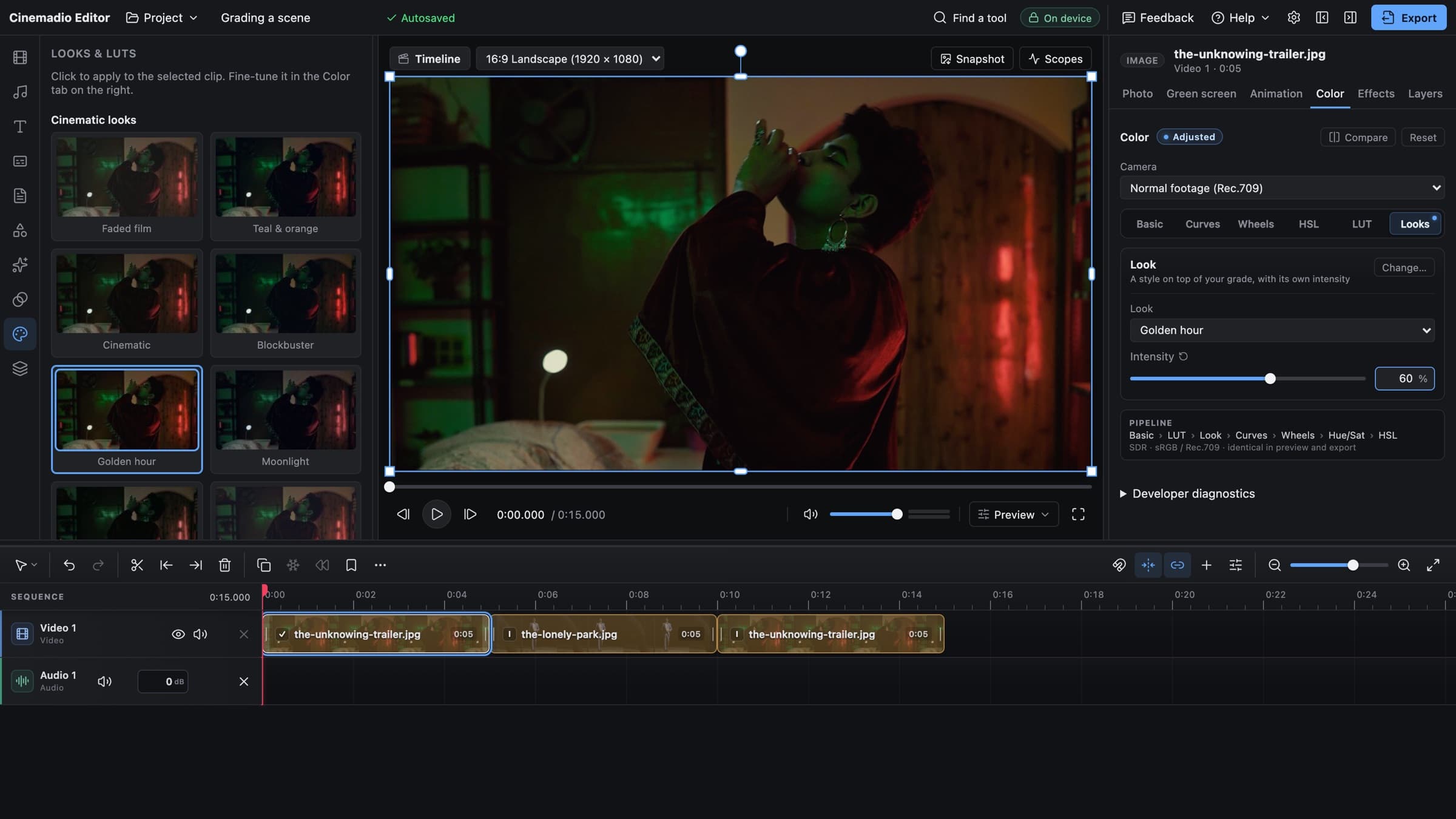
Now the fun part. Open the Filters tool in the left rail. The panel is headed Looks and LUTs, and it shows previews drawn on your own shot. There's Faded film, Teal & orange, Golden hour, Moonlight, Neo noir, Vintage 70s and more. Choose by eye, not by name. Then click one to apply it.
Here's the key idea. Back in the Color tab, the Looks section has an Intensity slider, and it starts at 100 percent. Don't leave it there. Try 30 to 60 percent. You'll still get the mood, but you won't get the preset feel.
It helps to know how the editor handles this. A look never replaces your own settings. It sits after Basic and any LUT, and your Curves and Wheels stay on top of it. So the corrections you made earlier are still there, and you can keep fine tuning.
A few simple rules help.
- Use one look per scene. Don't stack them.
- Pick the look that matches the mood of the scene, not just the one you like most.
- Treat the names as a starting point. Moonlight on a daytime shot is just a blue shot.
Protect the skin
People judge skin colour instantly, and they do it without thinking. If a look makes someone seem ill, sunburnt or orange, viewers feel it even if they can't say why.
Teal and orange is the classic example. It works in big films because skin is naturally warm and the background goes cool, so the two stand apart. But if you push the whole frame towards orange, everything becomes the same colour, and the effect falls apart.
So look closely at faces and hands after you add a look. If they've gone strange, reduce the intensity or pull the colour back with the Wheels. A believable face is worth more than a dramatic sky.
Let the scopes check you
Your eyes can fool you. A bright room makes a dark image look fine. A dim room makes everything seem too bright. And after ten minutes, your eyes adjust to whatever is on screen.
That's why the editor has live scopes. Press the Scopes button above the preview, so that you get a real reading of brightness and colour. You don't need to master them. Just use them to check two things. Are the darkest parts crushed into pure black? Are the brightest parts clipped into pure white? If so, ease off.
Compare, reset and rest
There's a Compare button in the Color tab. Use it all the time. It flips between your grade and the original, so you can see what you really changed. It's humbling. Sometimes the original is better.
If you've gone too far, press Reset and start the section again. There's no shame in it. Everyone does.
Then walk away. Your eyes adapt quickly, so a grade that looked great after an hour might look heavy after a break. Come back with fresh eyes, or even the next morning. And check the result on a phone and on another screen, because that's where people will watch.
A quick word on LUTs
A LUT is a file that changes colour in a fixed way. Think of it as a saved recipe. The editor lets you load your own .cube LUTs, and it shows you a live preview on your shot.
The best use of a LUT is conversion. Camera makers often supply one that turns their log footage into normal colour. That's useful and safe. Random packs of creative LUTs from the internet are another matter. They can look great on one clip and terrible on the next. So test them on a few shots, and lower the strength if you aren't sure.
Let the story decide
All of these tools answer the same question. What should this scene feel like? Warm and remembered? Cold and distant? Plain daylight, honest and a bit rough?
That's why a good grade can look so simple. Our short film Last Ember is a study of the last light of the day. The grade was meant to hold that transition rather than rush it. That's the kind of decision we mean. It isn't about a trendy look. It's about what the picture needs to say.
And remember that grading can't rescue weak light. If the shot was flat to begin with, our note on using available light will help you next time.
A short routine
- Set the Camera to match how you shot.
- Fix exposure and white balance in Basic.
- Make the shots in each scene match.
- Add a look, and turn the intensity down.
- Check skin, and check the scopes.
- Compare, rest, and check on a phone.
You can try it all in the Cinemadio Editor. It's free, with no account and no watermark, and your footage stays on your computer.