17 November 2026 · 5 min read
What to Do When a Video Says It Can't Be Played
An unplayable video is rarely lost. Find out whether the format, the weight of the file or damage is to blame, then fix it with free tools.

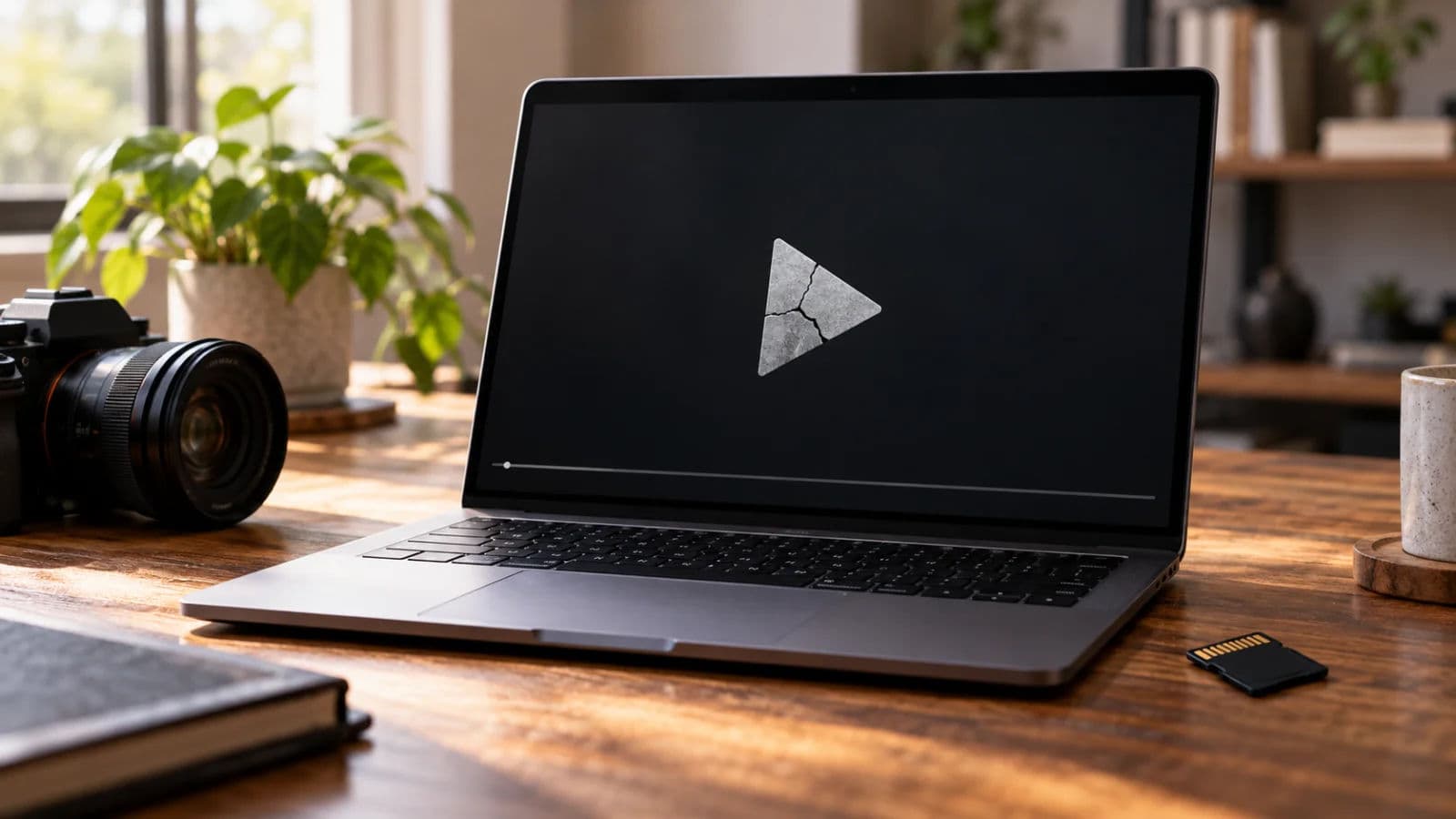
You press play and get a message instead of a picture. This video can't be played. Unsupported format. Sometimes the editor imports the clip and then shows a black frame, or plays the sound with no picture at all.
It feels as if the footage is gone. It almost never is. In most cases the file is healthy. The program in front of you can't read it, or can't read it fast enough. The mistake people make is reaching for repair software before they know which problem they have.
A website video is a different problem
If the message appears on a streaming site, in a chat app or on a web page, your own files aren't involved. Reload the page first, then try another browser or device. Ad blockers and privacy extensions break players surprisingly often, so turn them off and try again. If that fails, switch off hardware acceleration in the browser's settings and restart it. A slow connection can cause it too.
And sometimes nothing on your side will help. A video can be private, removed, age restricted or blocked in your country.
Your own file, three possible reasons
When a file on your computer, phone or camera card refuses to play, it's nearly always one of three things. The program doesn't understand the format. Or the file is too heavy for the computer, so it opens but stutters, freezes or shows black frames. Or the file is damaged, usually because a recording or a copy was cut short.
One quick test separates them. Open the file in a second program, ideally the free VLC, which plays almost anything. If it plays there, the file is fine and your first program is the problem. If it fails everywhere, suspect damage.
When the format is the problem
MP4 and MOV are only boxes. What matters is the codec inside, the way the picture was packed. VLC's codec information shows it, and so does the free MediaInfo.
Two codecs cause most of the trouble. HEVC, also called H.265, saves space on phones and cameras but isn't played by every computer or browser. ProRes is a professional editing format that browsers can't play at all. An H.264 file almost always plays, so if one refuses, look at size or damage instead.
The fix is a converted copy, and the easiest free tool for it is HandBrake. It's free, it runs on your own computer, and it leaves your original alone. Open the file, choose a preset such as Fast 1080p30, check that the format says MP4 and press Start Encode. For 4K footage, pick a 2160p preset so you keep the resolution.
When the file is simply too heavy
This is the one I meet most. Big files, especially 4K, open fine and then make editing miserable. Playback stutters, scrubbing freezes, and the preview sometimes goes black.
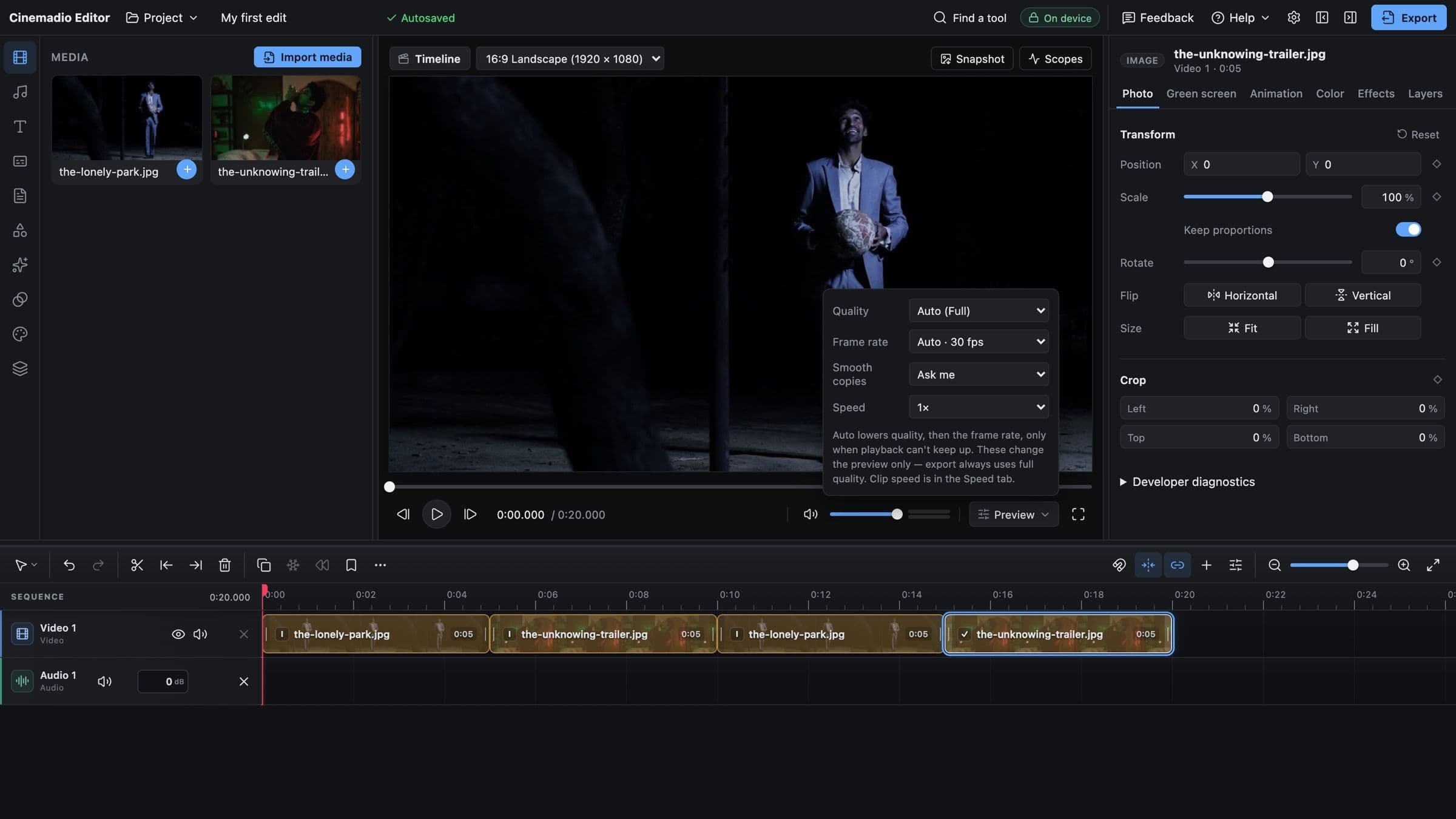
My answer is proxies. A proxy is a small, light copy made only for editing. The editor plays it while you work and switches back to the original for the export, so the final video loses nothing. If your computer isn't powerful, make proxies for 4K footage before you start cutting. It's the one piece of advice I'd give every beginner, because it saves hours of waiting and a lot of crashes.
In Premiere Pro, select the clips in the Project panel, right click and choose Proxy, then Create Proxies. In DaVinci Resolve, right click them in the Media Pool and choose Generate Proxy Media. Both editors have a single button to switch between proxy and original.
Sometimes the file and the computer are both fine, but they don't get along. One graphics card handles a format well and another struggles. When that happens I try the other renderer. In Premiere Pro, the project settings let you switch between GPU acceleration and software only rendering. It doesn't always help, but it takes a minute to test.
When the file really is damaged
A damaged file usually has a story behind it. The battery died mid recording, the card came out too early, or a copy stopped halfway. With MP4 and MOV files, the end of the file often holds the index that tells players where each frame sits. If the recording was cut short, that index is missing, and many programs refuse the whole thing.
Protect what you have before anything else. Leave the card as it is, don't record over it, and work only on a copy of the broken file. Then try opening that copy in a different editing program and exporting it from there. It has worked for me, because some programs are more forgiving than others. Paid repair tools exist and can help with badly broken files, but try the free route first. Plenty of unplayable files turn out to be a format problem, not damage at all.
So start small. Open the stubborn file in VLC or MediaInfo and find its codec. That one fact tells you which of the three problems you're facing.