24 October 2026 · 6 min read
How to Edit 4K Footage on a Laptop That Struggles
A slow laptop does not have to mean slow editing. Smooth playback copies, lighter previews and a few small habits can make 4K footage feel easy again.
You drop a 4K clip on the timeline and press play. It stutters. You press play again. It stutters again. The fan starts to sound like a small aircraft, and you begin to wonder if you need a new computer.
Most of the time, you don't. 4K really is heavy. But a few ideas can make it feel light again, and you can use them on the laptop you already own.
First, though, it helps to know why it's hard.
Why 4K is so heavy
There are two reasons, and they stack up.
The first is plain size. A 4K frame has four times as many pixels as a full HD one. Your computer has to handle four times as much picture, thirty or more times every second.
The second is how the video was stored. Cameras and phones squeeze footage into formats that are small on disk. HEVC is a common one. The file is small because the camera did something clever. Your computer then has to undo that trick for every single frame, and it gets harder when you scrub backwards or jump around.
Therefore a laptop that plays a 4K film on a streaming site without any trouble can still struggle in an editor. Playing forwards is easy. Editing means jumping, scrubbing and stopping, and that's much more work.
What the editor does on its own
The Cinemadio Editor is built to cope with this, and most of it happens without you doing anything.
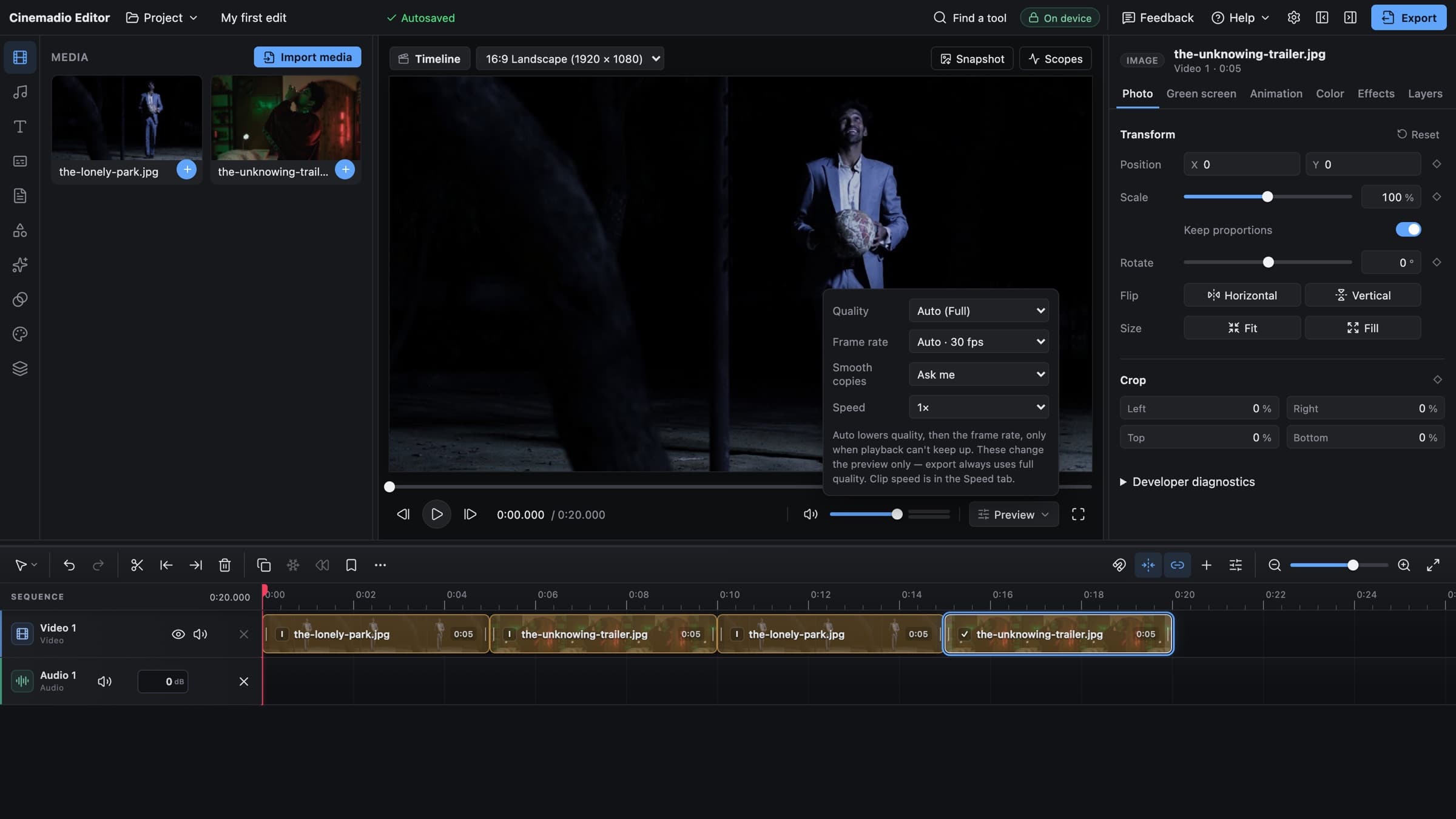
If playback can't keep up, the preview steps down. It lowers the resolution first. Then, if it still needs to, it lowers the frame rate. When your computer catches up, it steps back up. You only see it in the preview. It never touches your files.
Scrubbing is handled too. When you drag through a clip, the editor shows the nearest full frame straight away. The moment you stop, it shows the exact frame. And when you pause, you see the original frame at full quality, even if the preview was running lighter.
Most important of all, the export doesn't change. It renders from your original files at full quality and full frame rate. The lighter preview is only for editing.
Make a smooth playback copy
For really demanding clips, there's one more tool. It's called a smooth playback copy, and some editors call it a proxy.
A proxy is a small, light copy of your clip, made just for editing. It's easy for your computer to play, so that the timeline feels smooth. Your original stays exactly where it is.
In the editor, a clip that needs one shows a button called Smooth playback in the Media panel. Click it, and the editor makes the copy in the background. Each clip shows its own progress, so you know where you are. When it's finished, a small bolt marks the footage that has one. The editor pauses this work while you play or scrub, so it doesn't fight with you.
These copies are optional. Some people want them on every clip. Others only want them for a few. In the Preview settings under the player you can choose whether the editor makes them on its own or asks you first.
One thing to remember. A proxy is for editing only. When you pause, you see the original. When you export, the editor uses the original. So you never lose quality by using one.
Keep an eye on storage
Smooth playback copies take up space. That's the trade. The editor shows them in its Storage view, listed project by project, with a size limit and a Clear button for each. If your disk is getting full, clear the copies for a project you've finished. They can be made again whenever you need them.
It's also worth keeping plenty of free space for the export itself. A long, high resolution export needs room, and it's limited by your computer and your disk, not by anything on our side.
Small habits that help
Software can only do so much. A few habits around it make a real difference.
- Keep your footage on a fast drive. An internal drive is best. A slow USB stick or an old external disk makes everything worse.
- Plug the laptop in. Many laptops slow themselves down on battery.
- Close other tabs and heavy apps. A video editor wants all the memory it can get.
- Use a recent version of Chrome or Edge on a desktop or laptop. That gives you every feature, including linked folders.
- Give the laptop some air. A hot machine slows itself down to cool off.
None of this is glamorous. But it's often the difference between a stuttering timeline and a smooth one.
Watch for the software decoding warning
Sometimes the editor shows a warning that a clip is being decoded in software. It sounds technical, but the message is simple. Your computer's video hardware couldn't handle that file, so the processor is doing the work instead. That's slower and hotter.
If you see it, that clip is your problem. Make a smooth playback copy for it, and the timeline should improve straight away.
Match the project to what you'll publish
By default, the project follows your first clip. If your first clip is 4K, the project becomes 4K, and it also takes the clip's frame rate. That's handy, because you don't have to set anything up.
But ask yourself where the video will end up. If it's going to a phone screen or a normal web page, full HD is probably plenty. In that case you can change the resolution under Details and Modify. The frame rate lives in the same place. Your 4K originals stay untouched, and the export renders at the size you chose.
Decide this early. It's much easier to set the project once than to fix it after you've built a long timeline.
Cut your footage down early
Here's a boring tip that works. Don't carry hours of footage you'll never use. Before you start, scroll through your clips and trim each one to the part you really need. Less to load means less to think about, and your timeline stays readable too.
A quick routine
- Plug in, close extra tabs and put the footage on a fast drive.
- Drop your clips in and let the editor choose the preview quality.
- If a clip still stutters, click Smooth playback on it.
- Set the project size to match where the video will be published.
- Edit as usual, and export from the originals.
That's it. You'll find that a modest laptop can edit 4K better than you'd expect.
It's also worth knowing why all of this happens on your own machine. The editor has nowhere to send your video, so your computer does the work. That's why it stays private, and our note on telling if an editor is really private explains what to look for.
To try it with your own footage, open the Cinemadio Editor. It's free, with no account and no watermark.