24 October 2026 · 6 min read
How to Tell If an Online Video Editor Is Really Private
Plenty of online editors say they care about privacy. A few quick checks will tell you whether it is true. Here is a short list you can run in five minutes.
Open any website that edits video online and you'll probably see the word private somewhere near the top. It's printed on the homepage. It's in the footer. It's in the ads.
Words are cheap, though. And your footage isn't. It might be a client's product launch. It might be an interview with someone who trusted you, a family video, or a film you haven't shown to anyone. So before you drop it into a tool, it's fair to check what that tool really does.
The good news is that you don't need to be a security expert. A few quick tests will tell you most of what you need to know. They take about five minutes.
Why it matters in the first place
Let's be fair. For plenty of videos, privacy isn't a big deal. If you're trimming a holiday clip for a friend, you probably won't lose sleep.
But it matters a lot in some cases. Client work, often under an agreement. Interviews. Footage of children. Anything sensitive in a documentary. Unreleased films. If your file ends up on someone else's server, you've lost control of it. It might be stored, copied or backed up, and you may never know for how long.
Therefore the sensible time to check is before you drop the file in, not after. The question is simple. Where does my video go when I open it in this tool?
Test one, watch for the upload bar
This is the easiest check. Drop in a large file and watch what happens.
If you see a progress bar that says uploading, your file is travelling to someone's server. That's how a lot of online editors work. They edit your video on their machines, then send you the result.
If the file simply appears in a second or two, it's probably being read on your own computer. A big file can't cross the internet that fast.
Test two, turn the internet off
This one is very telling. Open the editor, let the page load fully, and then turn off your internet. Now try to import a clip and make a cut.
If it still works, the editing is happening on your device. If it stops with an error, it needs a server to do its job, and your video was going there.
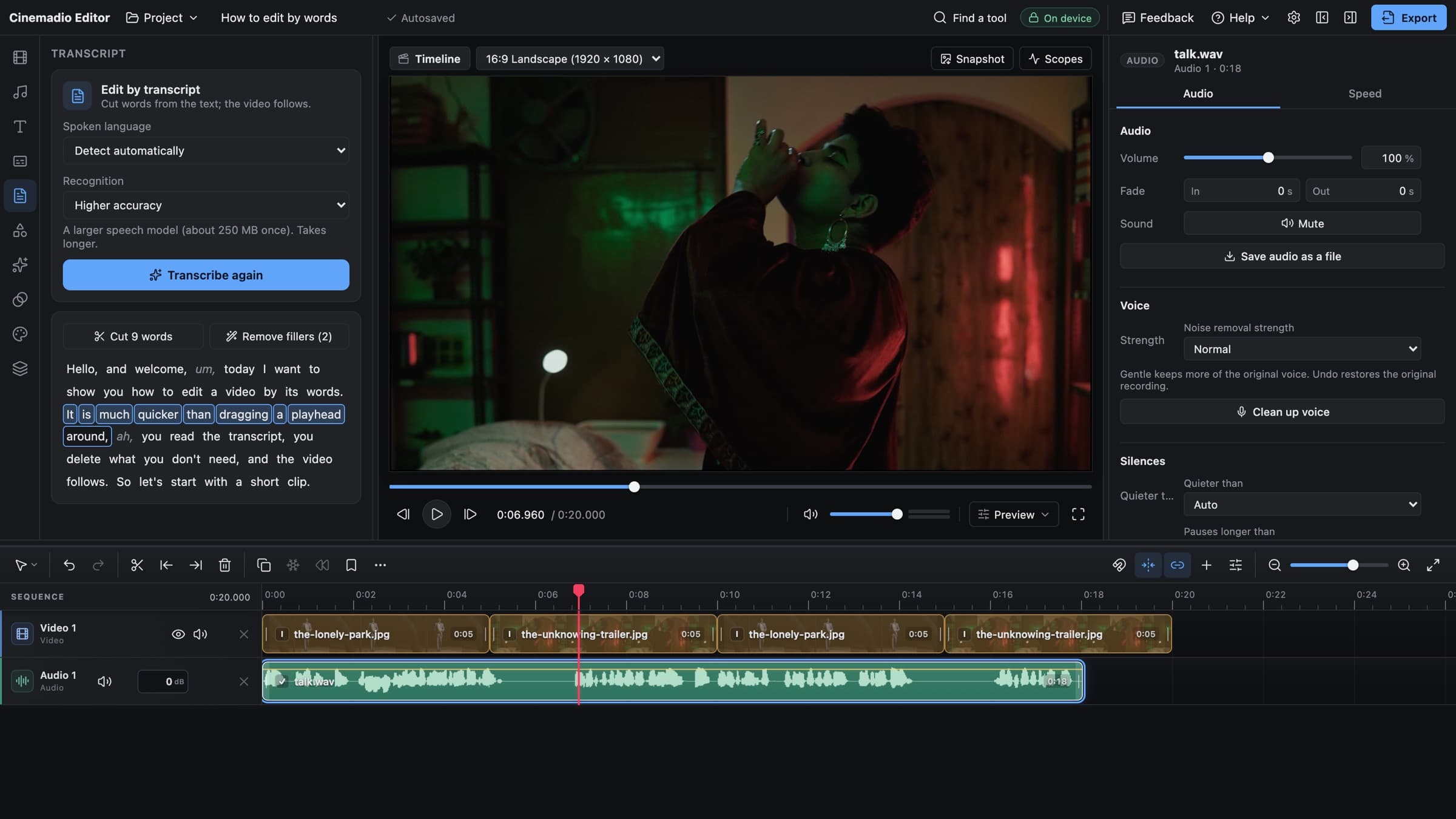
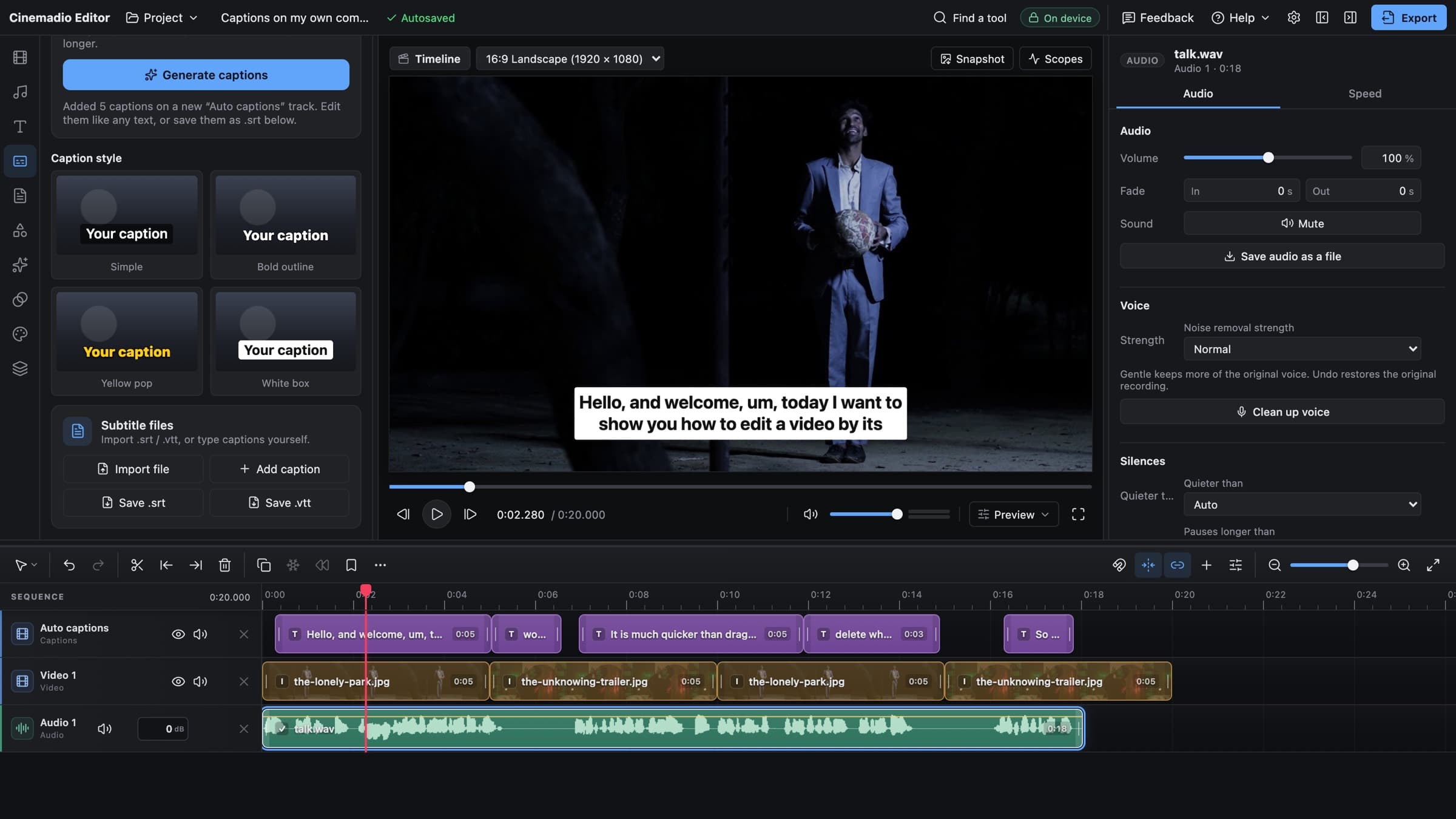
There's one honest exception. Some features need to download something once. In the Cinemadio Editor, for example, automatic captions load a speech model the first time you use them. After that, they work offline too. So do that first, so that your test is fair. Then turn the internet off.
Test three, look at the network tab
This needs a little courage, but it isn't hard. Every modern browser has developer tools. In Chrome, open the menu, choose More tools, then Developer tools. Click the tab called Network.
Now import a clip and edit it. Watch the list of requests. A private editor should show almost nothing going out. If you see big uploads, or requests to lots of other websites, you have your answer.
You don't need to understand every line. You're looking for one thing. Is something large leaving your computer?
Test four, read the terms for a few words
Nobody enjoys reading terms of service. But you don't have to read all of it. Search the page for a handful of words.
- License. Does the tool claim the right to use your content?
- Improve. Phrases like "to improve our services" can cover a lot.
- Train. Do they use uploads to train their own models?
- Retain. How long do they keep your files?
If a tool says plainly that it never receives your files, that's a good sign. If the language is vague, treat it as a warning.
Test five, ask where the clever features run
Modern editors come with smart tools. Automatic captions. Noise removal. Background removal. These are exactly the features that usually send your video to a server, because they need heavy processing.
So ask a direct question. Does this feature run on my device, or on yours?
In the Cinemadio Editor, they run on your computer. Captions use an open source speech model that runs locally. Voice cleanup runs locally. Green screen, auto reframe and scene detection run locally too. It may take a little longer than a big remote server would, but your footage never leaves.
Test six, notice how the tool makes money
This one isn't about privacy directly, but it tells you something. Software costs money to build and run. If a tool is free and has no ads and no paid plan, somebody is paying. It's worth asking who.
Sometimes the answer is fine. A tool that runs entirely on your computer is cheap to offer, because there are no servers to pay for. That's why the Cinemadio Editor can be free with no watermark and no export limit. But if a tool uploads your video, stores it and still costs nothing, you should wonder what the business is.
Watermarks and tiny free limits are a hint, too. They aren't a privacy problem. But they tell you the product is built to push you toward a paid plan.
What private doesn't mean
Here's a part people skip. A private tool is private from the company. It can't protect you from your own computer.
A shady browser extension can read what's on your page. A shared computer can leave files behind. And because a private editor keeps your project in your browser, you're also your own backup. If you clear your browser data, you could lose your work. So save a project file or a package now and then, and keep your original footage somewhere safe.
That isn't a flaw. It's the other side of the deal. Nobody else has your files, so nobody else can look after them for you.
How the Cinemadio Editor does it
We'll be straight about our own tool, since it would be silly to write all this and skip it.
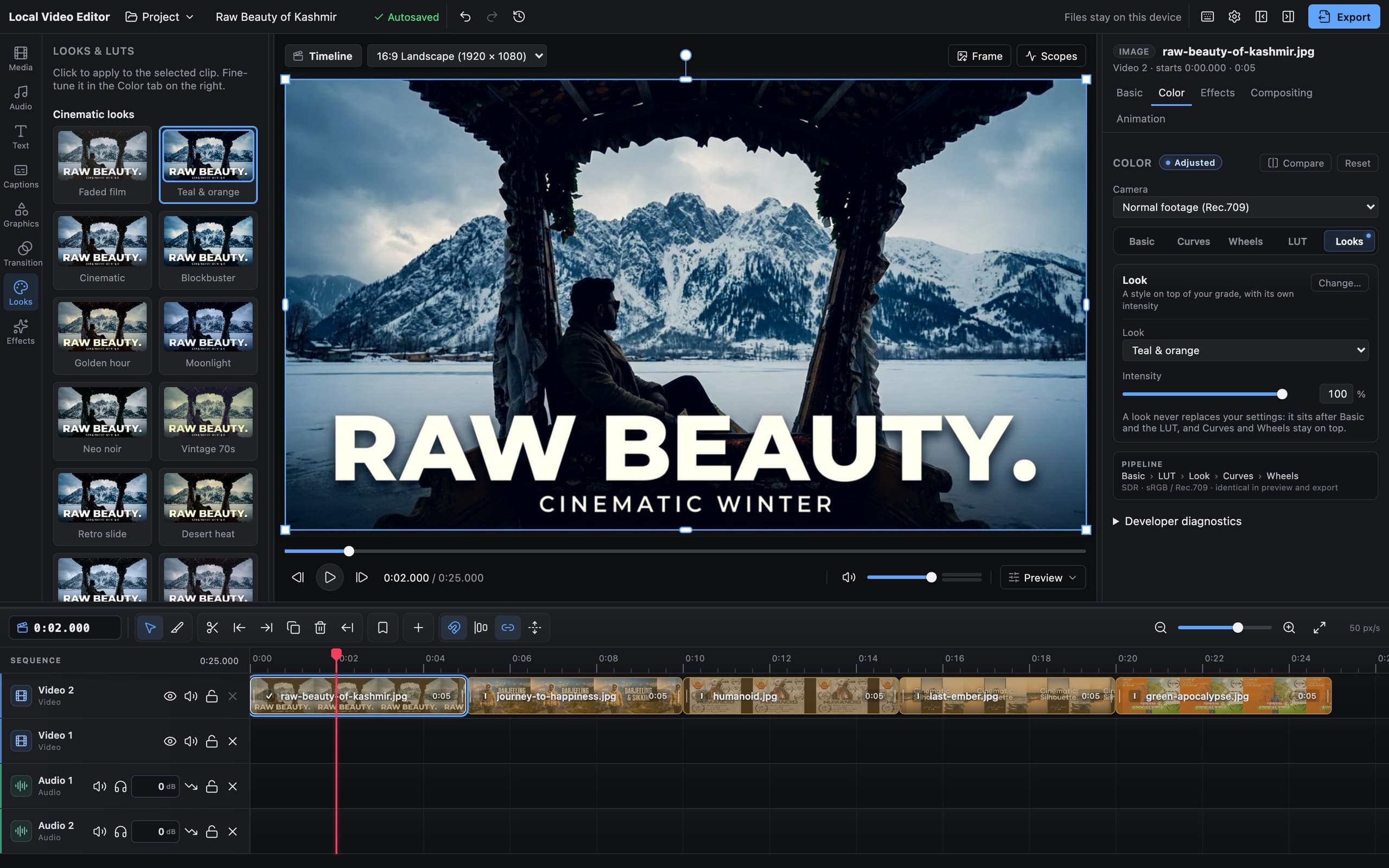
The editor has no server for your media. There's nowhere to upload to. Its security policy also blocks it from contacting other websites, so even a mistake couldn't send your video out. Your browser reads your files where they sit on your disk, and doesn't copy them. There's no account, no tracking and no ads. After your first visit it can be installed and used offline.
Please don't just take our word for it, though. Run the tests above on it, and on any other tool you use. That's the whole point of this note.
The five minute checklist
- Drop in a big file. Is there an upload bar?
- Turn the internet off. Does it still work?
- Open the network tab. Is anything large leaving?
- Search the terms for license, improve, train and retain.
- Ask where the smart features run.
If a tool passes all five, you can relax a lot. If it fails one, think about what you're putting into it.
When you're ready, try the Cinemadio Editor and run the tests yourself. Curious why it keeps working on a modest laptop? Our note on editing 4K on a struggling laptop explains that side of it.